
Getting started
On this page
Andora is our app for hosts. It helps you manage your property and earn more everywhere you list it, including RoveTravel.com, Airbnb, Vrbo and Booking.com. This guide walks you through signing up for Andora and getting your first listing live.
Part 1: Apply to list your property
To start, select Apply for Free on andora.ai or List on Rove on RoveTravel.com.
- Enter your property address and select it from the suggestions. We only accept properties in the United States for now.
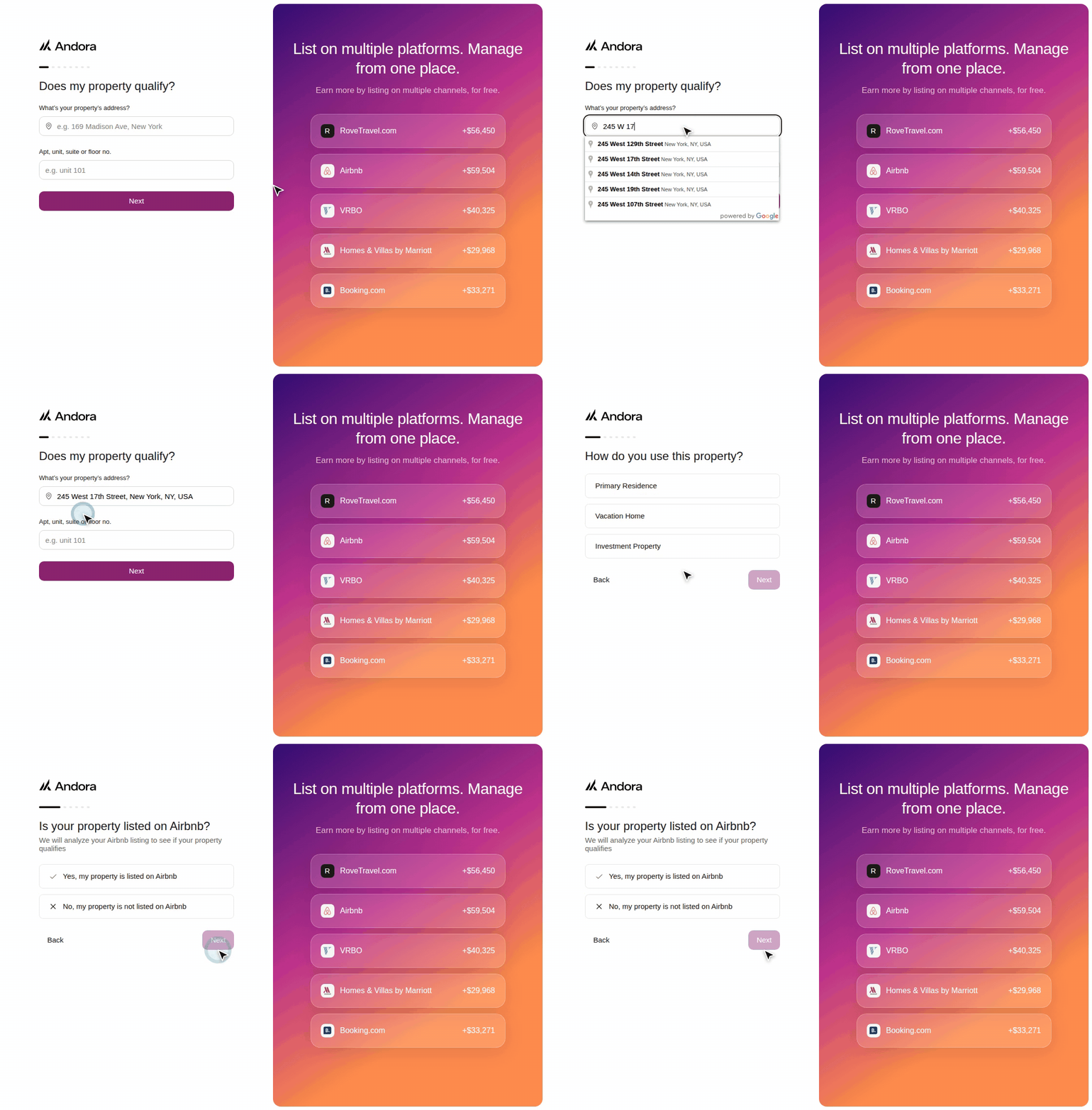
- Tell us how you use the property and whether it's listed on Airbnb.
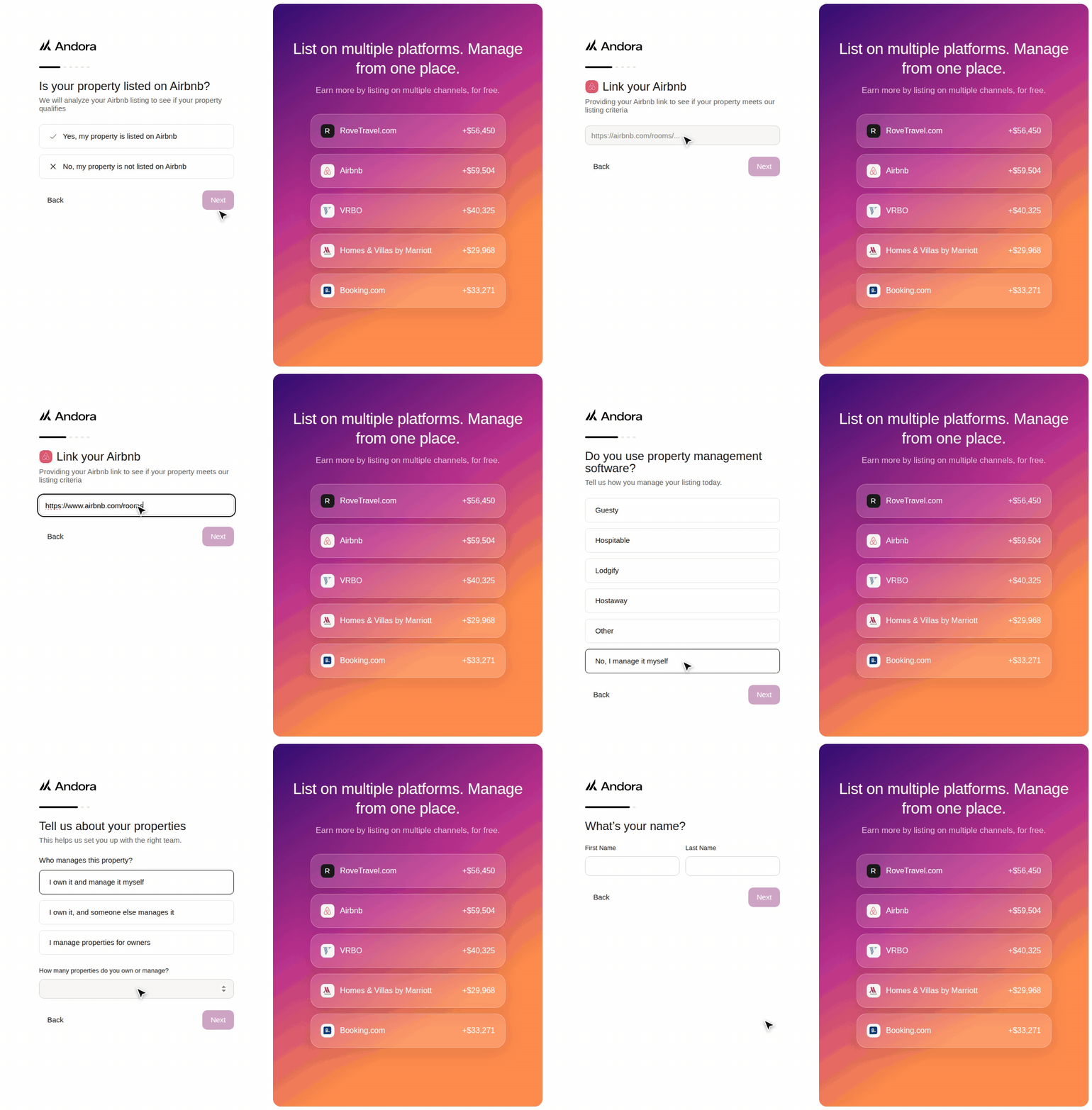
- If it's on Airbnb, paste the full listing link, such as https://airbnb.com/rooms/12345. Airbnb share links won't work here. To find the full listing link:
- Sign in to Airbnb and switch to hosting mode.
- Open Listings, select the property, then select Preview listing.
- Copy the link from the address bar. The preview opens your public listing page, and its link contains airbnb.com/rooms/ followed by the listing number.
- If it isn't on Airbnb, you'll need to add:
- Guest capacity
- Rooms
- Beds and property type
- Tell us whether you use property management software. Then, on Tell us about your properties, choose who manages the property and enter how many properties you own or manage.
- Enter your name and phone number. For US and Canadian numbers, agree to receive texts and enter the verification code. Phone numbers from other countries are saved without text verification. If you're on Airbnb, then select Submit My Application.
- If you aren't on Airbnb, add photos of the living room, kitchen and bedroom, then select Submit My Application. You can upload up to 40 photos: PNG, JPG, WEBP or AVIF, with a 10 MB limit per photo.
- Create your account: select Continue with Google, or enter your email and select Get Started, then fill in your details and a password and select Sign Up. Your password needs at least 8 characters, 1 uppercase letter and 1 of these symbols: ! @ # $ % ^ & * _. If you see This password has appeared in a data breach, choose a different one. Then enter the code we email you.
Usually applications are reviewed and approved within 24 hours, and we'll send you a link to Andora.
If you already have a Rove account, select Sign In instead. If you're already a host with us and want to add another property, select Properties → Add a Property in Andora.
What happens after I apply?
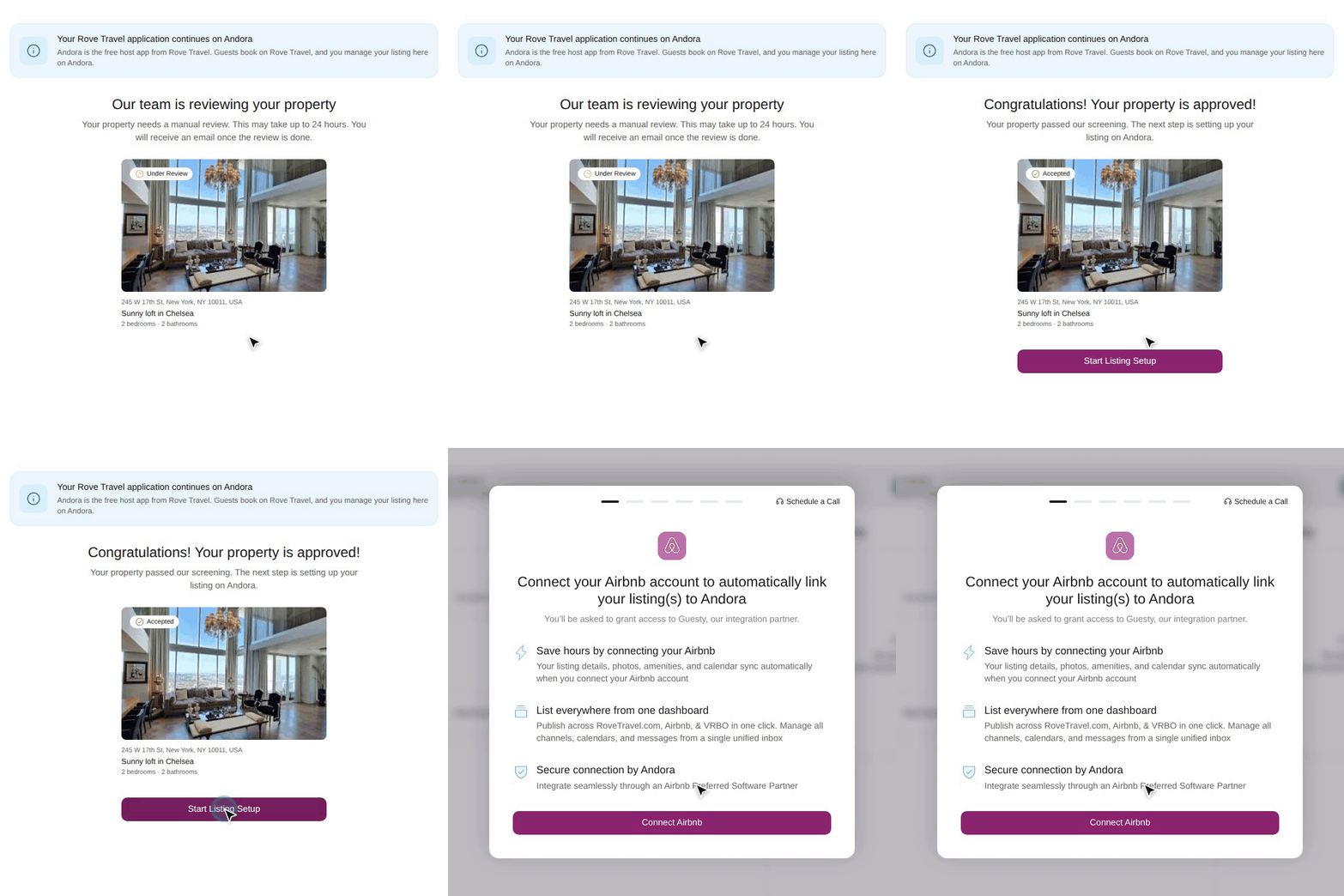
For Airbnb listings, we start an automatic check. Some applications need a manual review; properties that aren't on Airbnb go straight to our team.
You can close the page while you wait. Sign back in to check your progress, and watch your email for the decision. If you verified a US or Canadian number and agreed to texts, we also send text updates for some steps.
Once you see Congratulations! Your property is approved!, select Start Listing Setup. Approval is the start of setup; your listing still needs to be published.
What if my application wasn't approved?
We don't turn applications down. If yours isn't approved right away, it stays under review or on the waitlist until our team approves it, and we'll email you when it is.
If your property shows Not accepted from an earlier review, read any note shown beside it, then select Contact Us to ask our team to take another look. Tell us what has changed or what you'd like us to review, then select Send message.
There isn't a button to resubmit a rejected application. You can also email support@andora.ai. Include your property address, account email and Airbnb listing link, if you have one.
Part 2: Set up your listing
Once your application is approved, return to Andora and finish the setup steps shown for your property. If you're on Airbnb, these include notification guidance and a question about how you heard about us. If you aren't on Airbnb, you'll complete a property details form.
Airbnb
If your property is listed on Airbnb, your next step is to connect that listing to Andora. Select Start Listing Setup, then Connect Airbnb.
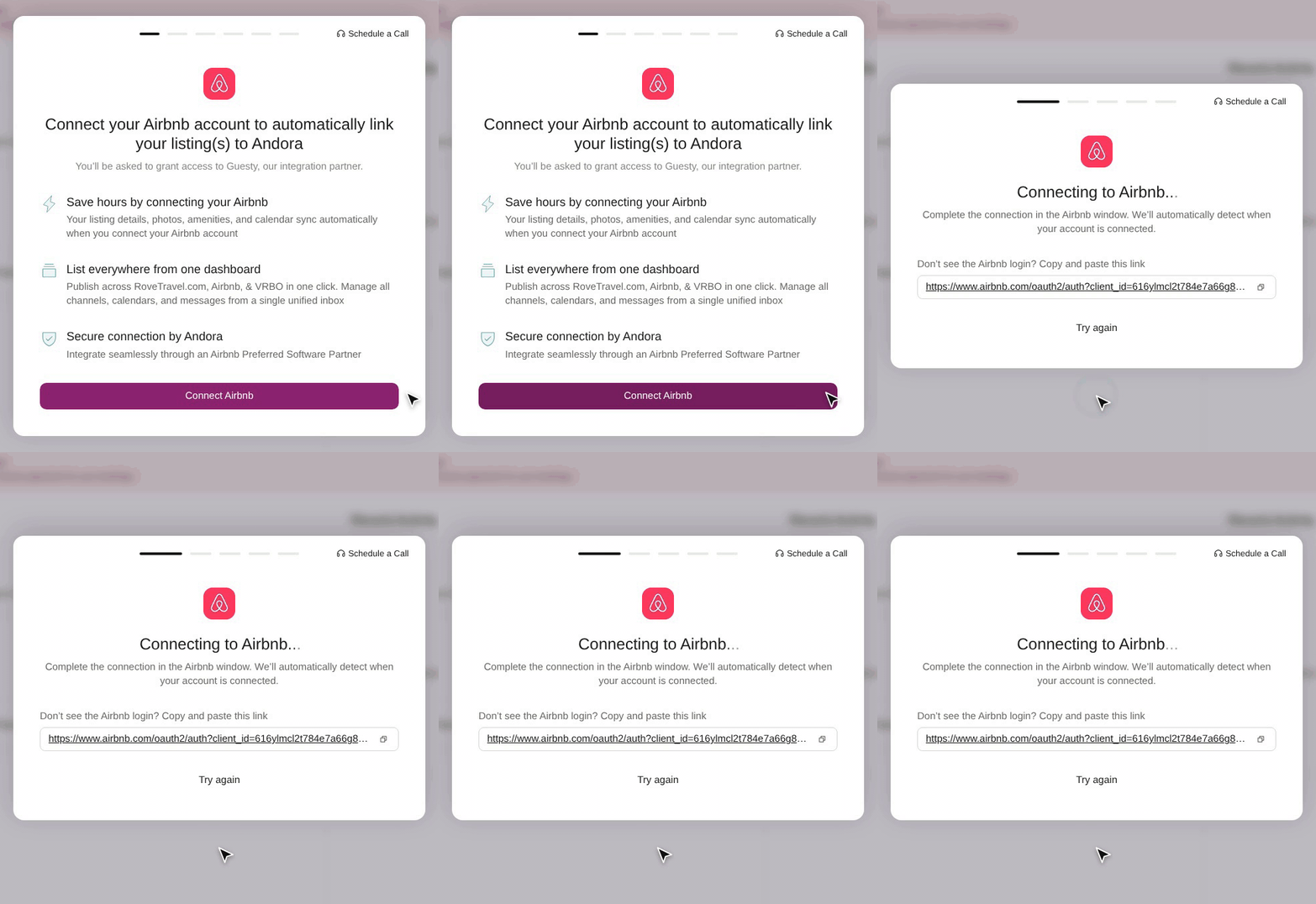
- Open the Airbnb connection link. You'll be asked to grant access to Guesty, our integration partner. If the Airbnb window doesn't open, use the copyable link under Don't see the Airbnb login? Copy and paste this link.
- Sign in to the Airbnb account that owns the listing you applied with, then finish the authorization steps.
- Return to the setup tab. We check for the connection automatically.
- Select Continue when the import screen shows it.
After 15 minutes without a detected connection, the screen changes to Still connecting.
First check that you completed the steps on Airbnb. Try again reopens the connection link. If you're still stuck, select Schedule a Call in the setup window, or email us with your Airbnb listing link and the name on the Airbnb account.
To change your Airbnb connection after setup, contact our team.
Part 3: Publish your listing
After you've completed the steps in parts 1 and 2, our team will prepare and publish your listing. You can leave the Creating your listing screen and come back later; we'll email you when the listing is live.
When you see Your listing is published, select Continue. If you received the live-listing email but still see the waiting screen, refresh the page.
On the Airbnb path, you'll also see an option to request listing on other booking sites. Follow the choices shown, then request an onboarding call if you'd like help.
Select Finish Setup or Skip & Finish Setup to open Overview. The setup screens stay in front of the rest of Andora until you finish.
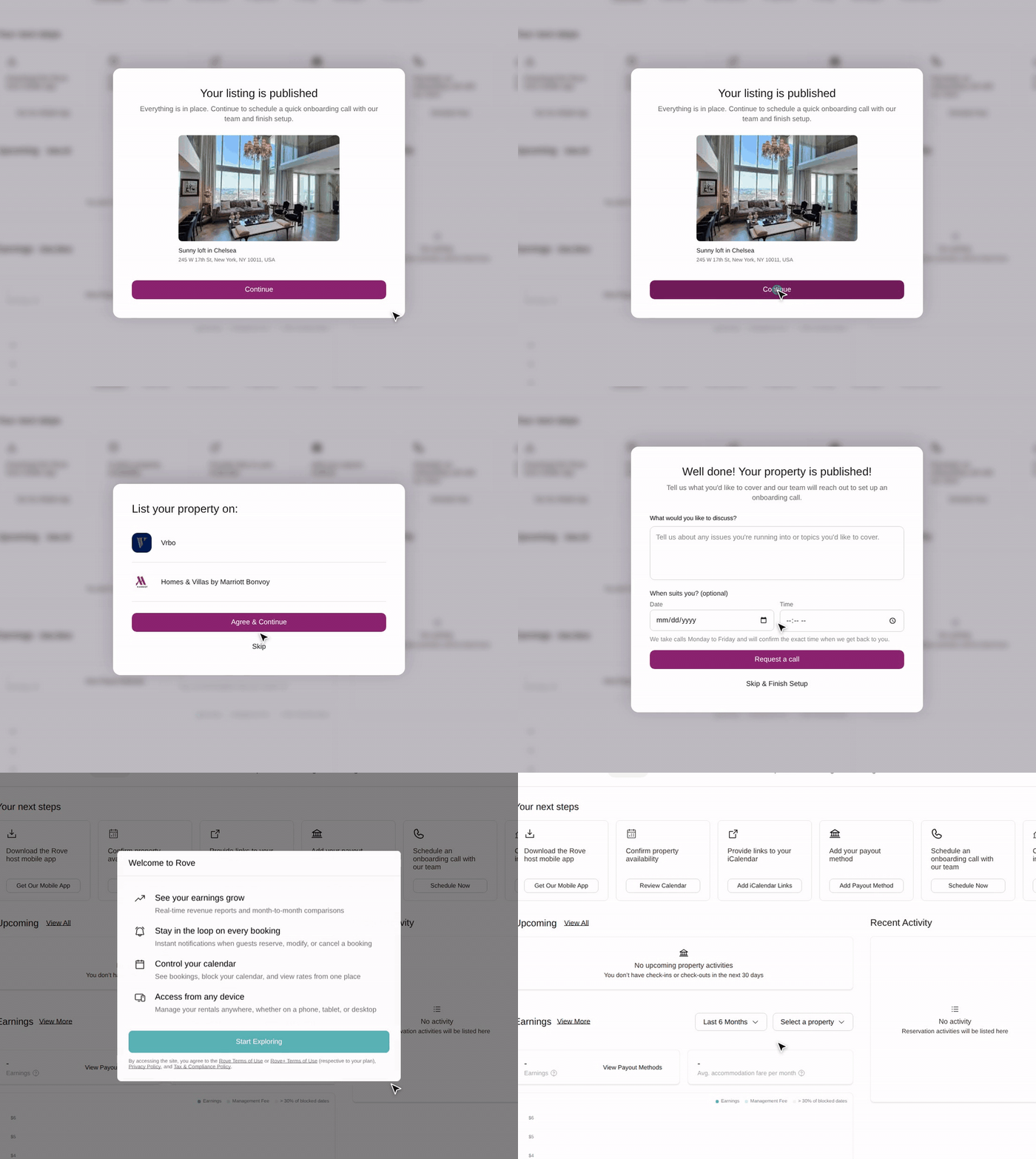
Part 4: Check your next steps
Once setup is finished, Your next steps on Overview helps you check the essentials. The cards shown depend on what your account and properties still need.
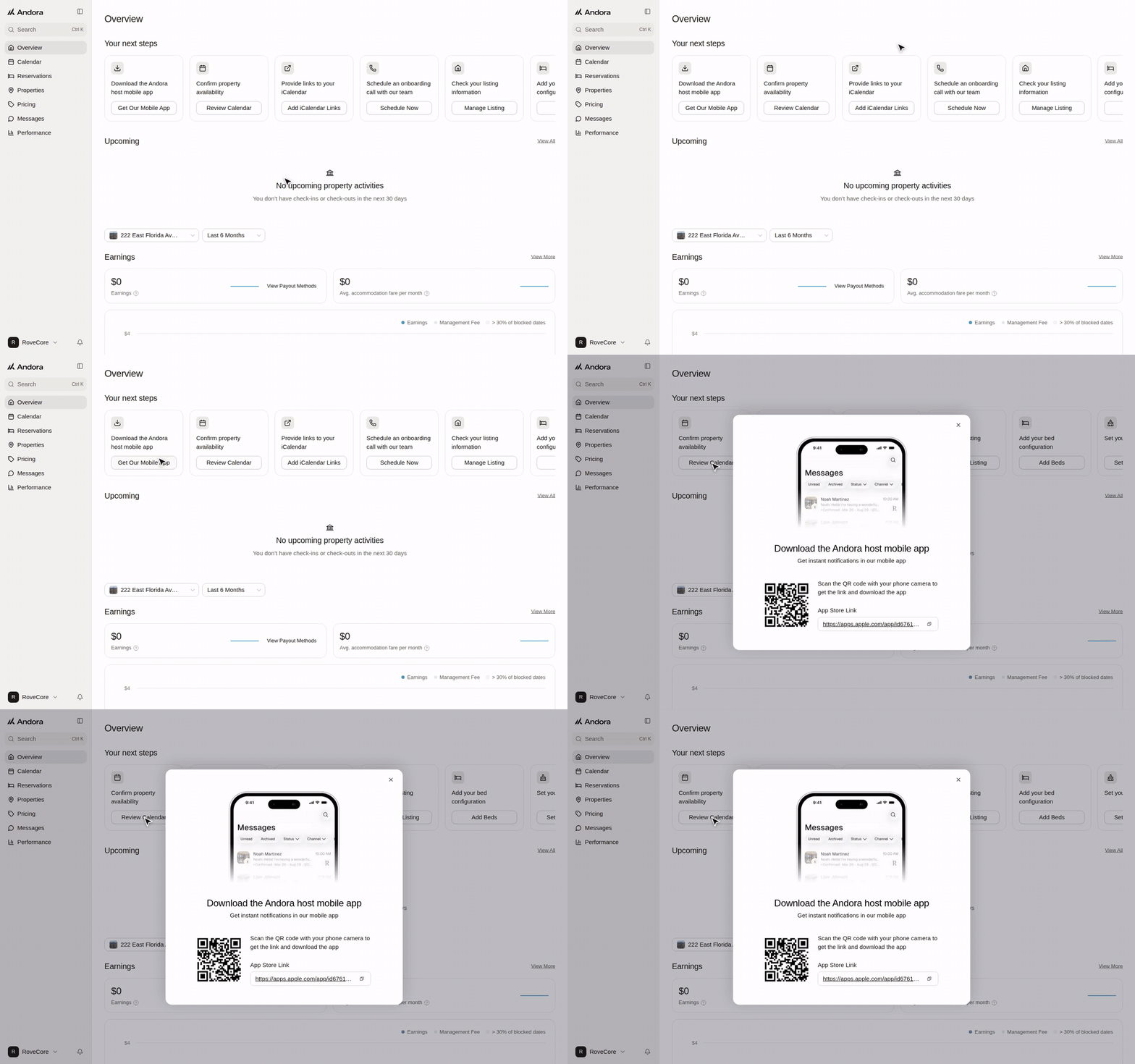
- Get Our Mobile App: download the Andora app for iPhone from the App Store, or scan the QR code the button shows.
- Review Calendar: check that available and blocked dates are right.
- Add iCalendar Links: add calendars from other sites, if needed.
- Add Payout Method: complete bank-account setup through Stripe.
- Manage Listing: review your property information.
- Add Beds: fill in any missing bed details.
- Set Cleaning Fee: check your cleaning fee, including setting it to $0 if you don't charge one.
- Add Instructions: add the access method, entry instructions and any required lockbox or door code.
- Schedule Now: ask our team for an onboarding call.
Some cards disappear when you open them; others stay until the task is complete. Opening a card alone doesn't confirm that your calendar or listing details are correct.
Airbnb
On the Airbnb path, your Airbnb reservations and their guest conversations are imported, so you'll find stays under Reservations and conversations in Messages. Allow time for the import to finish, then check your upcoming stays and calendar.
Connecting doesn't move those reservations to RoveTravel.com. Keep using Airbnb for their payment and payout information.
Older imported reservations are treated as history, so importing them doesn't normally send a new reservation alert. Recent reservations and later changes can still send notifications.