
Pricing, discounts and fees
On this page
You set your prices once in Andora, and we send them to RoveTravel.com and the booking sites you've connected, such as Airbnb and Vrbo. This guide walks you through your nightly and weekend prices, prices for particular dates and seasons, discounts and fees. It ends with what guests pay, what you earn and how to check your prices on other sites.
Part 1: Set your nightly price
- Open Pricing and select the property at the top. On a phone, select More → Pricing, then Settings. If you don't see Pricing, see the FAQ.
- Enter your nightly base price in whole dollars. This is your nightly rate before fees and taxes.
- To charge more on weekends, enter a weekend price and select your weekend nights. Friday and Saturday are selected to start. Leave the weekend price empty to charge your base price every night.
- Select Save Changes. You'll see Global nightly price updated.
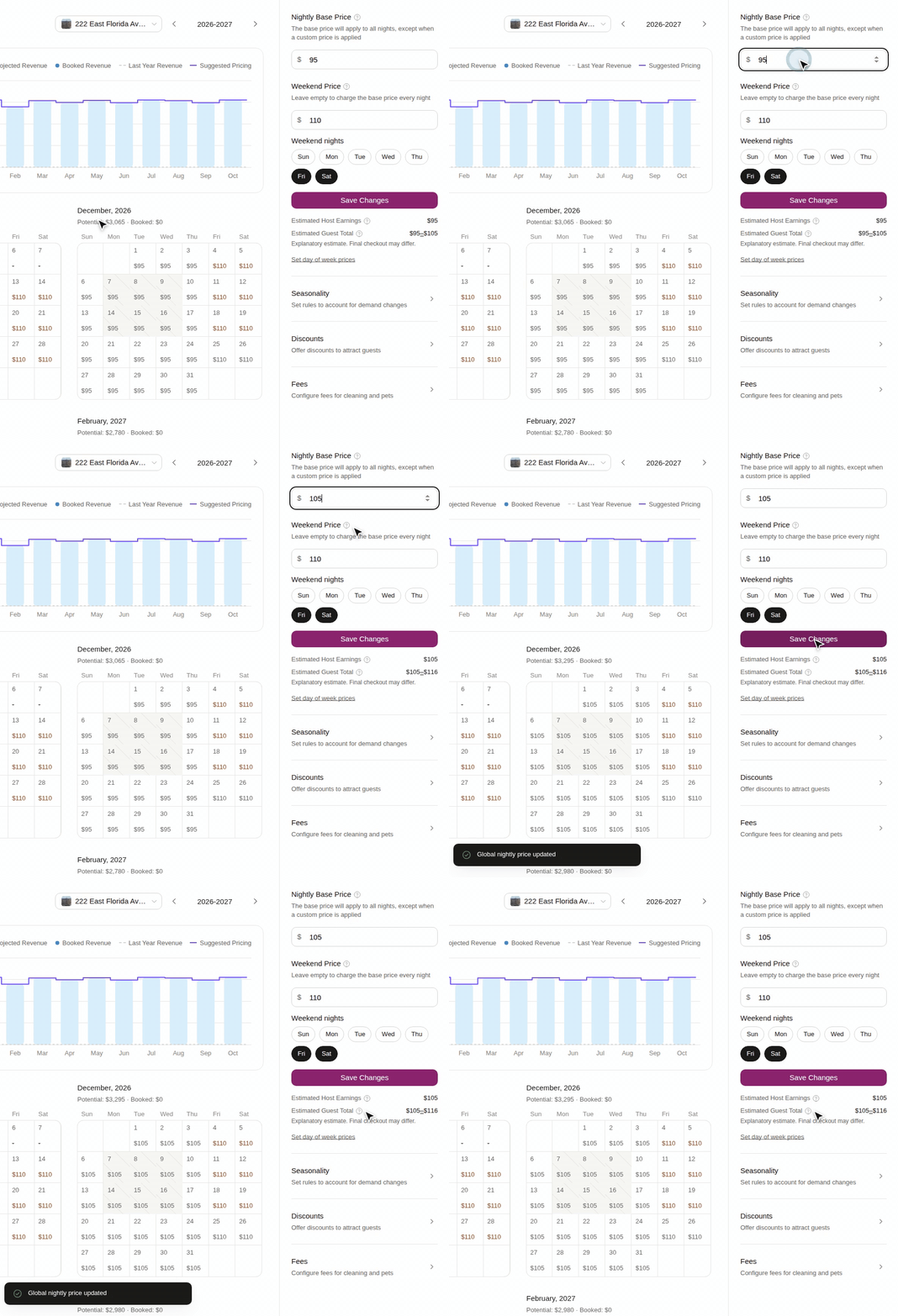
Your base and weekend prices apply to every future night that doesn't have a custom price. Seasonality and day-of-week changes adjust them (see below).
As you type, Estimated Host Earnings and Estimated Guest Total update. Hover over the guest total to see the price on each site, such as RoveTravel.com and Airbnb; on a phone, select it.
If your minimum stay is 30 nights or more, you'll also see a Monthly Rate (your nightly price times 30), and day-of-week prices and the weekly discount are hidden. Below it, the estimates become Estimated Monthly Host Earnings and Estimated Monthly Guest Total. They're for 30 nights, with each site's total listed underneath.
Set a price for particular dates
- Select the first night on the Pricing calendar, then the last night. To select the rest of a month, select the month's name. The selected dates end on the checkout day, the day after your last night, so all of January shows as Jan 1, 2027 - Feb 1, 2027 and 31 nights.
- Enter the nightly price under Custom Price.
- Select Save Changes. You'll see Pricing updated.
To undo a custom price, select the same nights again and select Revert to Base Price. You'll see Reverted to base price, and each night goes back to whatever your other settings give it.
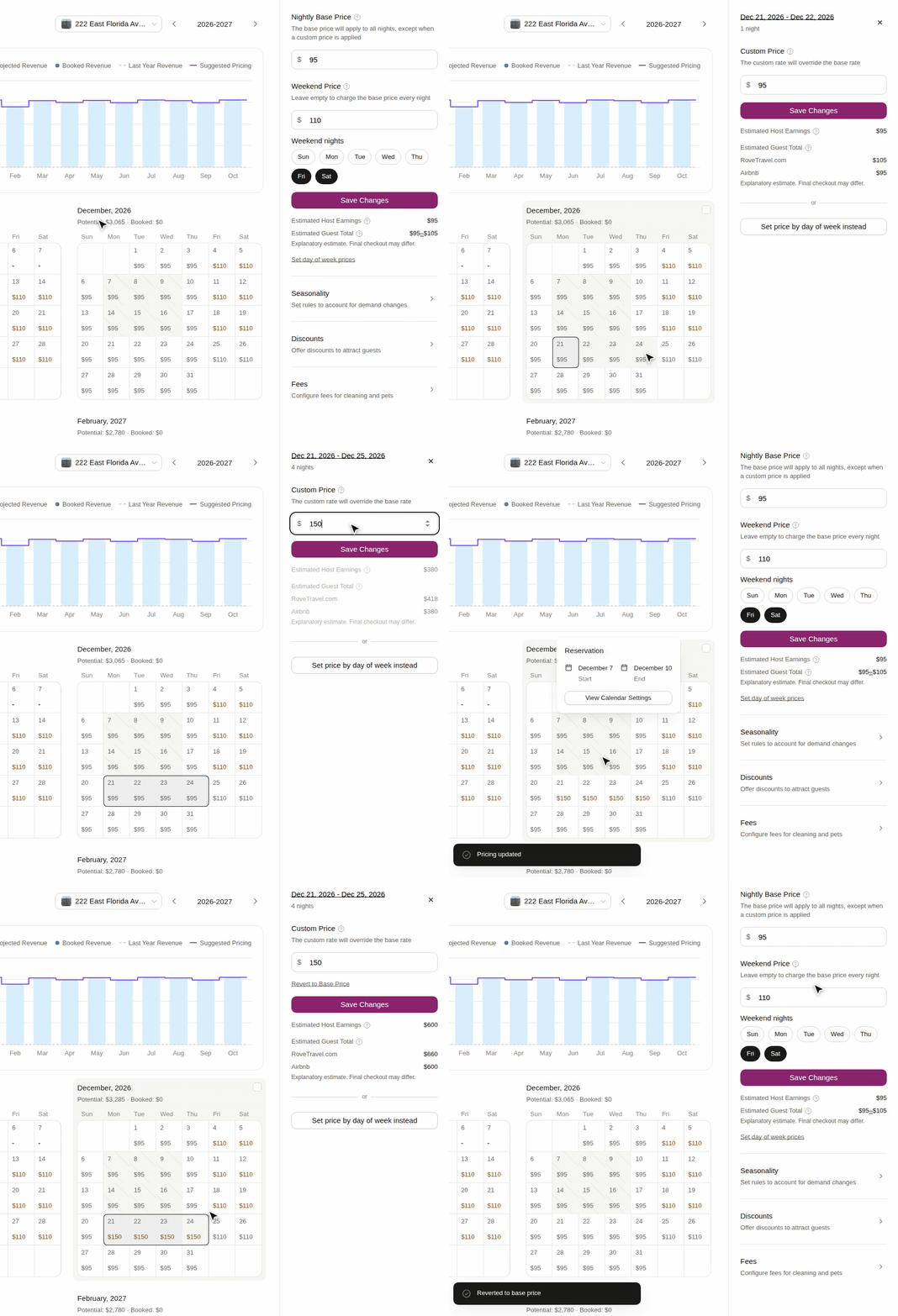
A custom price replaces your base price, weekend price, seasonality and day-of-week changes for those nights. Changing those later doesn't touch it.
You can change prices on nights that are already reserved. The reservation keeps the total the guest agreed to.
To set a different price for each weekday within your selected nights, select Set price by day of week instead.
Charge more in busy seasons or on certain days
Use Seasonality for busy or quiet months, and Set day of week prices for particular days.
For seasons:
- Open Pricing and select Seasonality.
- Select the edit icon beside a month.
- Enter the base price adjustment as a percentage, such as 20 to charge 20% more that month. Use a minus sign to lower it.
- Select Save. You'll see Seasonal pricing updated.
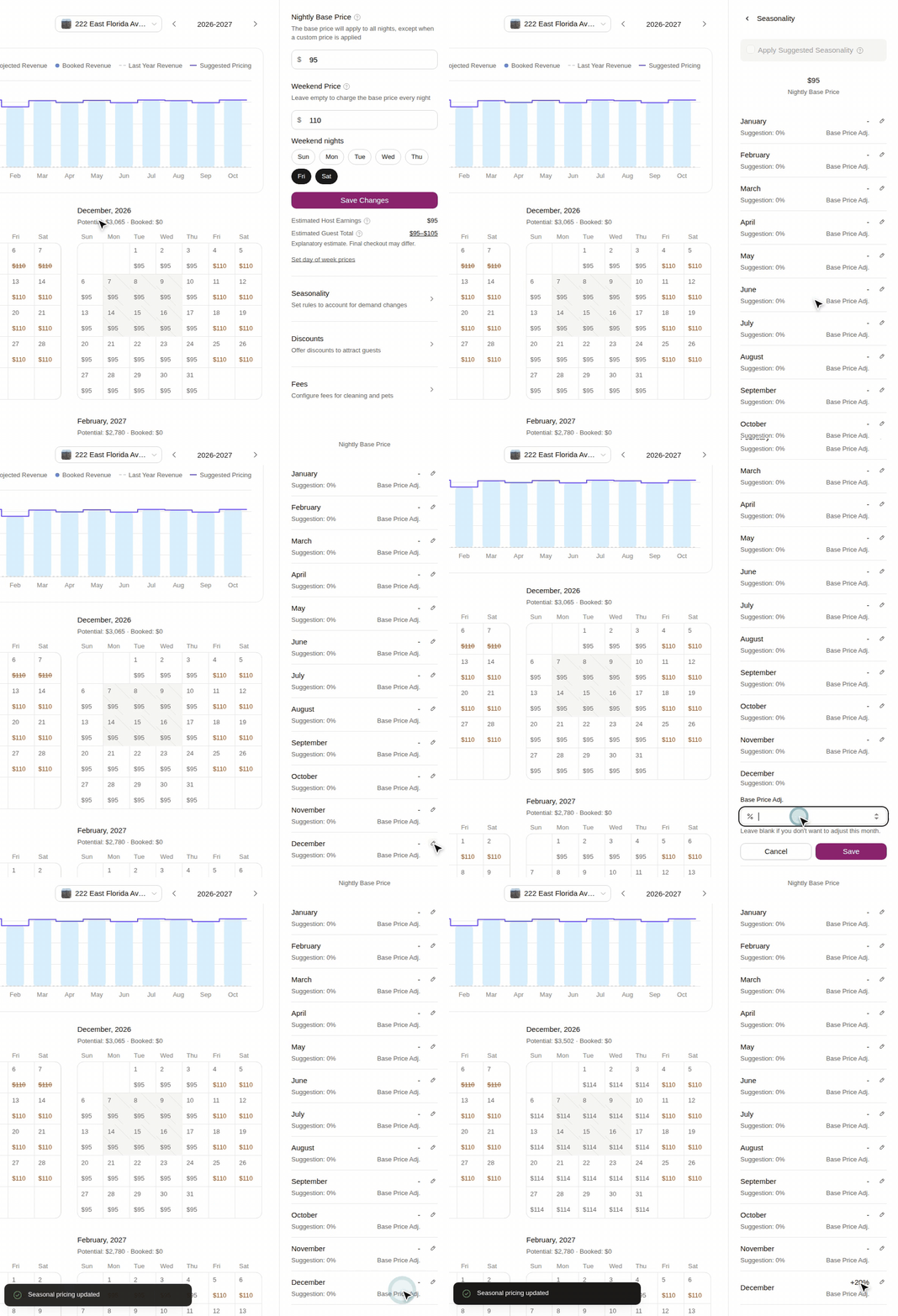
To remove a month's adjustment, enter 0 and select Save.
Apply Suggested Seasonality uses our suggested change for each month instead of your own. Selecting it replaces any months you've set yourself, and clearing it doesn't bring them back.
For days of the week:
- Select Set day of week prices under your nightly price.
- Enter a percentage for each day, from -99 to 99.
- Select Save Changes. You'll see Day of week pricing updated.
These changes build on each other. With a $100 base price, +20% in July and +10% on Thursdays, a Thursday night in July is $132. They don't change nights that have a custom price.
Part 2: Offer discounts for longer stays
- Open Pricing and select Discounts.
- Select the edit icon beside Weekly Discount (7 nights or more) or Monthly Discount (30 nights or more).
- Enter a percentage and select Save. You'll see Discount updated.
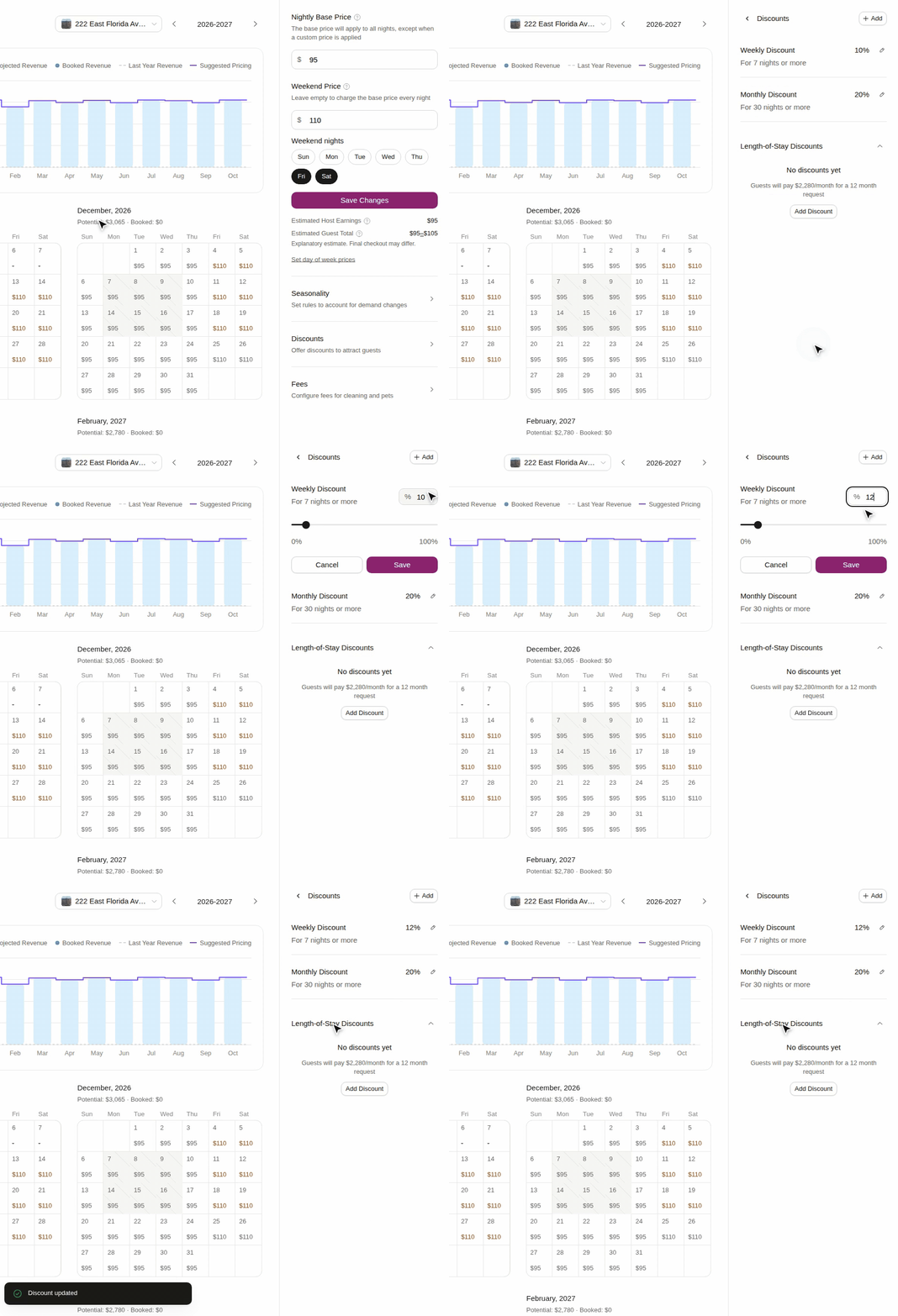
The weekly discount covers stays of 7 to 29 nights. From 30 nights, only the monthly discount applies, so set both if you'd like to reward longer stays.
Each reservation gets 1 discount: the one for the longest stay it qualifies for. Discounts apply to custom prices too, so a $300 night with a 10% weekly discount is $270.
You can also offer discounts for stays of 1 month, 2 months, 3 months, 6 months or 12 months. Select Add, select the stay length and set the discount, then select Add Discount. You can use these or the weekly and monthly discounts, but not both at once.
Weekly and monthly discounts are sent to Airbnb as well. Set discounts only in Andora: discounts you add directly on Airbnb don't show in Andora and can stack with yours.
Part 3: Set your cleaning fee and pet fee
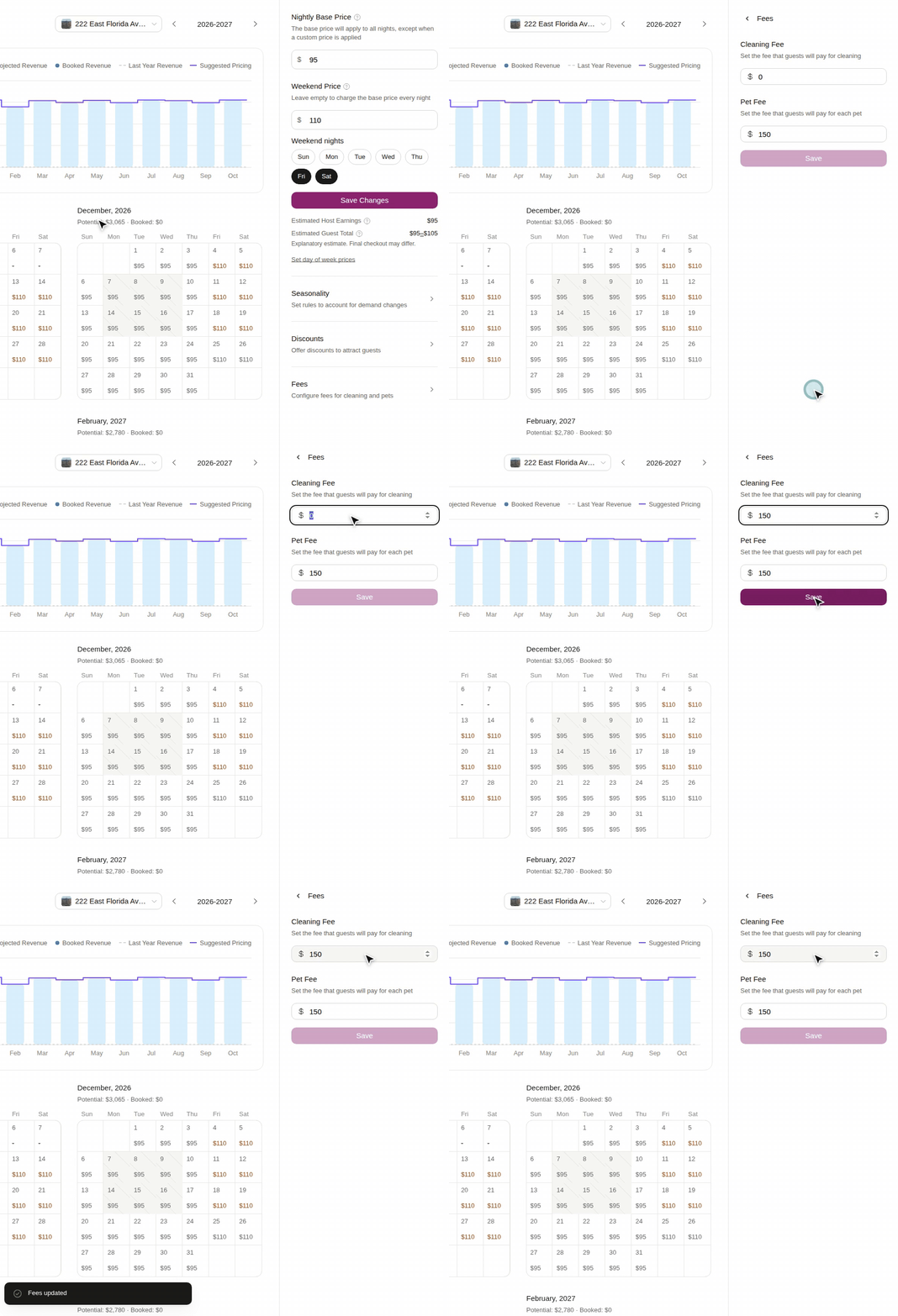
- Open Pricing, select the property and select Fees.
- Enter your cleaning fee in whole dollars. Enter 0 if you don't charge one.
- Enter your pet fee, which guests pay for each pet. If the pet fee is grayed out, it's set for all your properties. To change it, email support@andora.ai with the pet fee you'd like.
- Select Save. You'll see Fees updated.
The cleaning fee can't be more than $600 plus 25% of your base price on Airbnb. If it is, you'll see Cleaning fee can't exceed $… with your limit.
Guests pay the cleaning fee once per stay, and it's paid to you along with your earnings. The pet fee is charged once per stay for each pet, however long the stay. We send both fees to Airbnb and Vrbo too.
New listings start with a $150 pet fee ($350 in New York City), so change it to suit you. Guests can only bring pets if Allow pets is on. You'll find it in Properties → Manage Listing → Guest Experience → House Rules.
Set fees only in Andora. Fees you change directly on Airbnb or Vrbo can be replaced the next time Andora sends yours.
Part 4: Check what guests pay and what you earn
The Pricing page estimates what guests pay and what you earn at your current prices. Each reservation shows the actual amounts.
- Estimated Host Earnings: what you earn from your nightly price after any discount and any Management Fee, plus your cleaning fee.
- Estimated Guest Total: what a guest pays on each site, including the cleaning fee, taxes and, on RoveTravel.com, our service fee. Hover over it to compare sites; on a phone, select it. Pet fees and card fees aren't included.
To see the estimate for particular nights, select them on the calendar.
When guests book on RoveTravel.com, they pay our service fee on top of your price: 10% of the nightly price and cleaning fee, or 12% for properties in New York City. It doesn't come out of your earnings.
For example, if 3 nights come to $315 and there's no cleaning fee, a RoveTravel.com guest pays $346.50 before taxes and any card fee. You earn $315.
Airbnb, Vrbo and other sites charge their own fees, and some of those come out of your payout from that site. The host earnings estimate doesn't include them.
For a reservation's actual amounts, open Reservations, select View Details, then View Breakdown in the Earnings card. An Airbnb inquiry can show an Estimate badge until it's confirmed.
Part 5: Check your prices on Airbnb and other sites
Every nightly price you save in Andora is sent to Airbnb, Vrbo and your other connected sites automatically, usually within a few minutes. To check, look at the same dates on that site after a few minutes. If they still don't match, email us with the property, the dates and both prices.
Make price changes only in Andora. Prices you change directly on Airbnb or Vrbo can be replaced the next time Andora updates those dates.
To find out whether Andora ever changes your prices on its own, see the FAQ.