
Calendar and availability
On this page
Your Andora calendar shows every night at your property: what's booked, what's blocked and what guests can still book. This guide walks you through blocking dates, syncing your other calendars, setting your booking rules and adding a reservation you arranged yourself. If we manage your property on Rove+ or Rove Lite, you can block dates, and on Rove Lite you can also change your booking rules and Calendar Sync.
Part 1: Block dates
Block dates when you're staying at the property yourself or when it's closed for repairs. Guests can't book blocked nights, and Andora also sends your blocks to the Airbnb and Vrbo listings you've connected.
- Open Calendar. If you have more than 1 property, select the property to open its calendar (on a phone, select its photo).
- Select Block Dates.
If you can't select it, your role may not allow it. Admins and Members can do everything in this guide; Viewers can see the calendar, blocks and settings, but can't change them. Ask an Admin on your team to change your role (see the Your team and account guide). - Select the start and end dates. The end date works like a checkout day: to block the nights of June 10, 11 and 12, select June 10 to June 13.
- Select a reason: Owner Stay for your own stay, or keep Repairs & Maintenance. Onboarding, Offboarding and Temporary Hold are there too.
If we manage your property on Rove+, you'll see 2 Owner Stay options instead of 1. Select the one that tells us whether you need Rove housekeeping. - Add a note if you like, then select Save Changes. You'll see Block added.
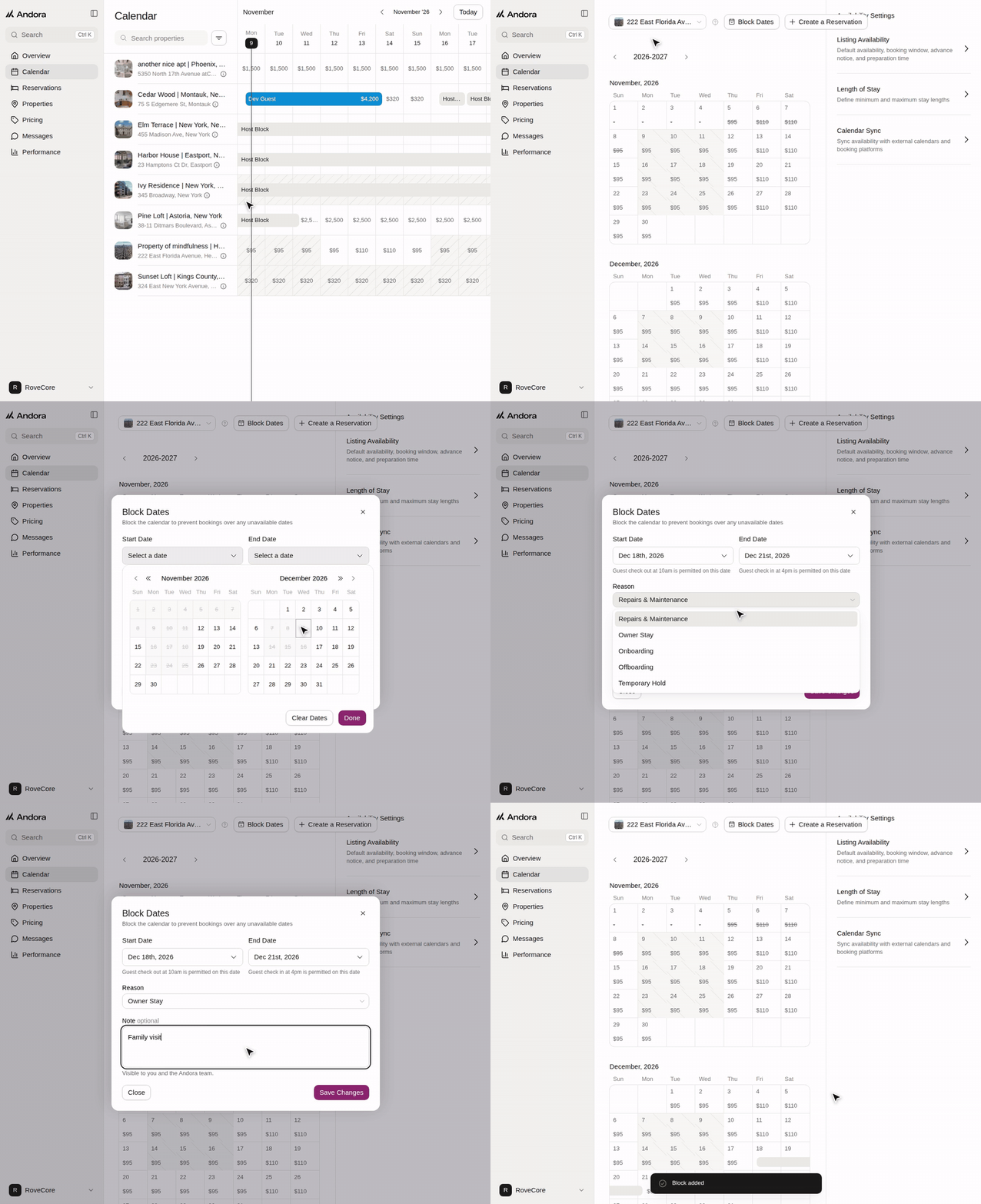
You can also hover over a free date (on a phone, select it) and select Block Date. On the calendar that shows all your properties, select the first and last night in a property's row, then Block Dates.
You can block nights that are already reserved. If that reservation is later canceled, the block stays in place.
Change or remove a block
Hover over the block to open its card (on a phone, select it), then:
- To change it, select Edit Block, update the dates, reason or note, then select Save Changes. You'll see Block edited.
- To remove it, select Remove Block, then Remove Block again in Confirm Block Removal. The nights can be booked straight away.
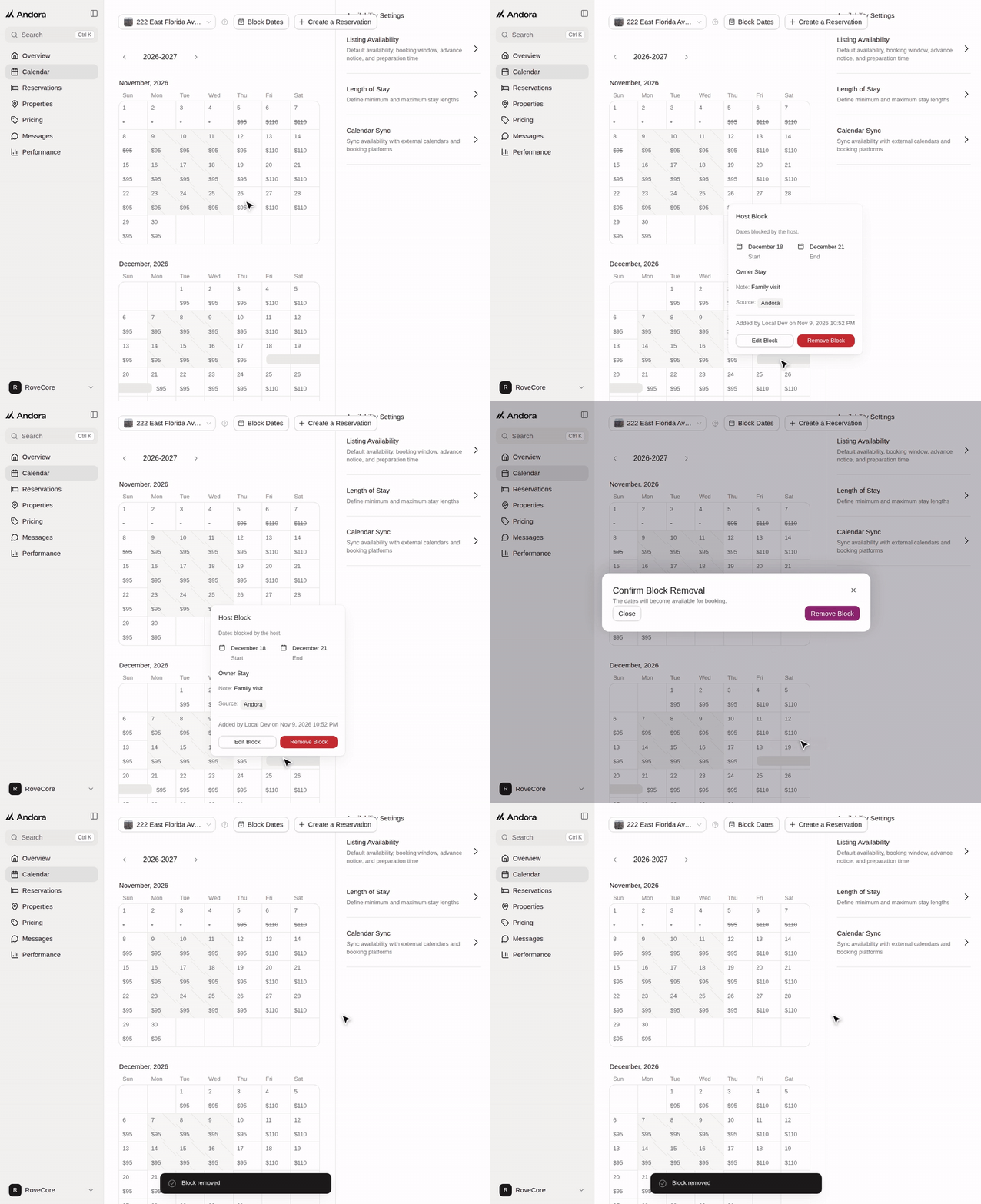
Once a block's last night has arrived, it can no longer be changed.
If the window stays open after you select Remove Block or Save Changes, the block overlaps a reservation or a block you can't change, such as a booking rule. Email support@andora.ai with the property and the dates, and we'll take a look.
Why are these dates blocked?
Hover over the dates (on a phone, select them). The card's title tells you what kind of block it is, and Source shows where it came from.
Your blocks, Airbnb Blocks and iCal Blocks show as solid bars. Booking rules and calendars you added in Calendar Sync show as striped days. Only your blocks and Airbnb Blocks have buttons.
- Host Block: you, a teammate or our team blocked the dates. Change it from its card. If the reason is Auto-declined Request, a RoveTravel.com request wasn't answered within 24 hours, so we declined it and blocked those nights. Remove Block opens them again.
- Airbnb Block: dates copied from Airbnb when you connected your listing. You can change or remove these from the card too.
- The name of a calendar you synced, such as Vrbo, with the source iCalendar: busy dates from a calendar you added in Calendar Sync. Change them in that calendar, or turn the sync off (see Part 2).
- iCal Block: dates from an outside calendar our team connected for you. Email us to change it.
- Advanced Notice, Booking Window, Preparation Time or Blocked by Default: one of your booking rules. Change the rule in Listing Availability (see Part 3).
- Smart Calendar Rule, Annual Booking Limit or Allotment Block: a rule our team set, such as a local limit on nights per year. Email us if you have questions about it.
- Reserved, Reservation or Owner Reservation: a reservation holds these dates. They open again if it's canceled.
Part 2: Sync your other calendars
If you also accept reservations somewhere Andora isn't connected to, such as your own booking site or a personal Google Calendar, add that calendar's link in Calendar Sync. Andora then blocks its busy dates for you.
- Open Calendar and select the property.
- Select Calendar Sync under Availability Settings, then Add. On a phone or small screen, select Settings first. If Calendar Sync says your property already syncs calendars through Guesty, select Get in touch and we'll help you set it up.
- Enter a name for the calendar, then paste the calendar's export link. It usually ends in .ics.
- For Vrbo, hover over How do I find my iCalendar link? (on a phone, select it) for the steps.
- For Google Calendar, copy the Secret address in iCal format from the calendar's settings.
- Select a sync type:
- Two-way Sync: brings that calendar's busy dates into Andora and gives you a link to paste into the other calendar, so it can see your Andora dates too.
- One-way Sync: brings that calendar's busy dates into Andora only.
- Select Save. Andora checks the link (Checking this calendar…), then shows Calendar added.
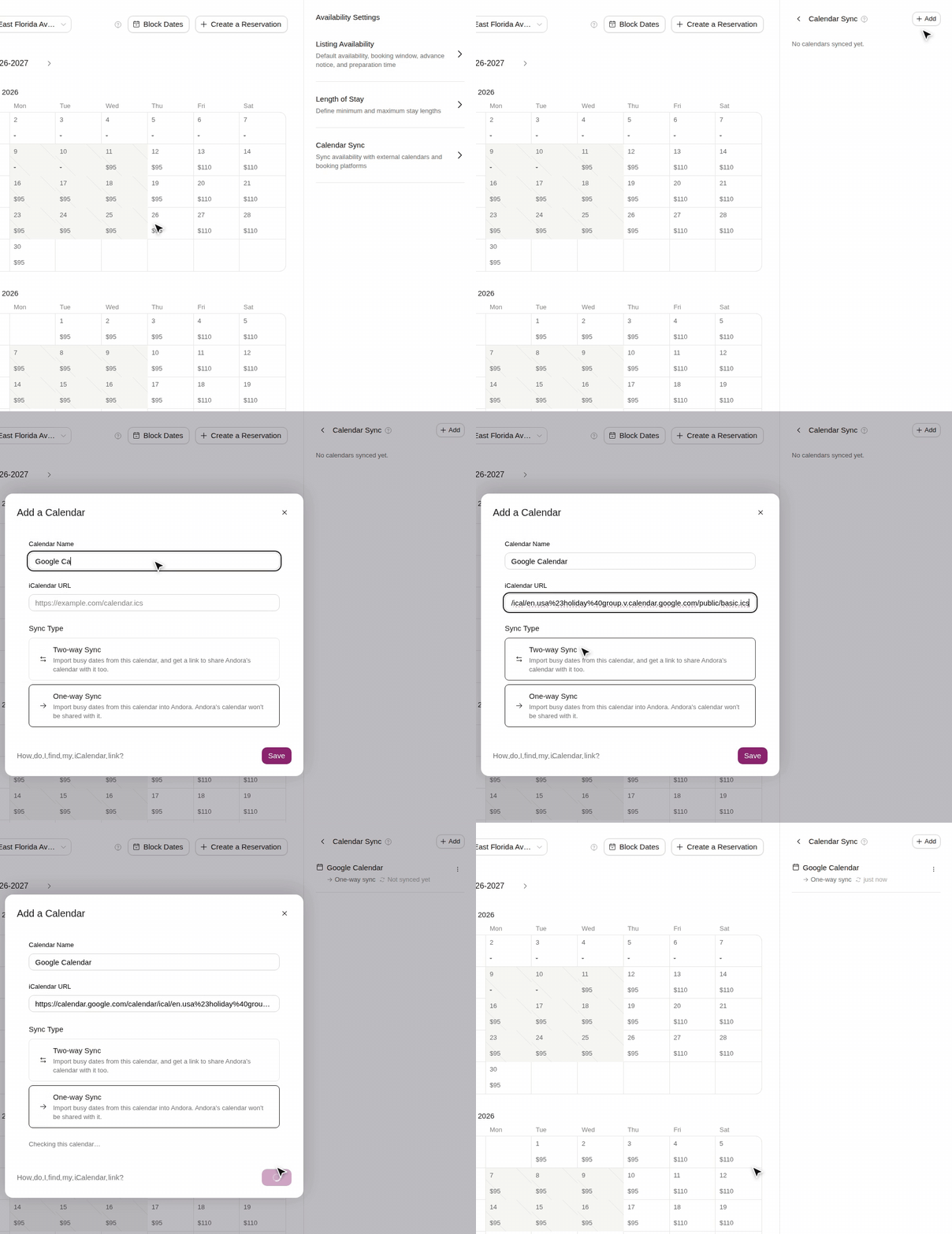
Andora reads each calendar every 15 minutes and looks 2 years ahead. The other site decides how often it reads the link you got from Two-way Sync. You can add up to 20 calendars to a property.
Events marked "Free" are skipped. In Google Calendar, all-day events are "Free" unless you change them to "Busy".
Why isn't my calendar syncing?
Open Calendar Sync. A calendar with a problem shows Sync failed. Hover over it (on a phone, select it) to see why, then select the 3 dots beside it to open its menu:
- Sync Again: try again now.
- Edit: paste the calendar's current export link and select Save. Andora checks the new link straight away.
- Turn On: turn the calendar back on, if it has been turned off.
If you see This URL doesn't return a calendar feed, or a message saying the link redirects, you've pasted a web page instead of the calendar's export link. Copy the iCal export link from the other site and use Edit to paste it in.
If a calendar stops syncing for more than a day, we email your team: Your calendar "…" stopped syncing.
To clear synced dates, change them in the other calendar, or select Turn Off or Delete for that calendar in Calendar Sync.
Part 3: Set your booking rules
Booking rules decide which dates guests can book. You'll find them on the property's calendar under Availability Settings.
Set advance notice, booking window and preparation time
- Open Calendar and select the property.
- Select Listing Availability. On a phone or small screen, select Settings first.
- Set what you need:
- Default Availability: keep it on Available. With Blocked, new dates show as Blocked by Default and can't be opened from Andora.
- Booking Window: how far ahead guests can book, from 2 weeks to 24 months, or Always available (Default).
- Advance Notice: turn it on and enter how many days' notice you need before a check-in, up to 365.
- Preparation Time: keep 1 or 2 nights free before, after, or before and after each reservation. It only applies to reservations made after you save. To keep nights free around reservations you already have, block them yourself.
- Select Save Changes. You'll see Availability settings updated.
- If you changed Preparation Time, you'll see Preparation time saved instead. Select Got it.
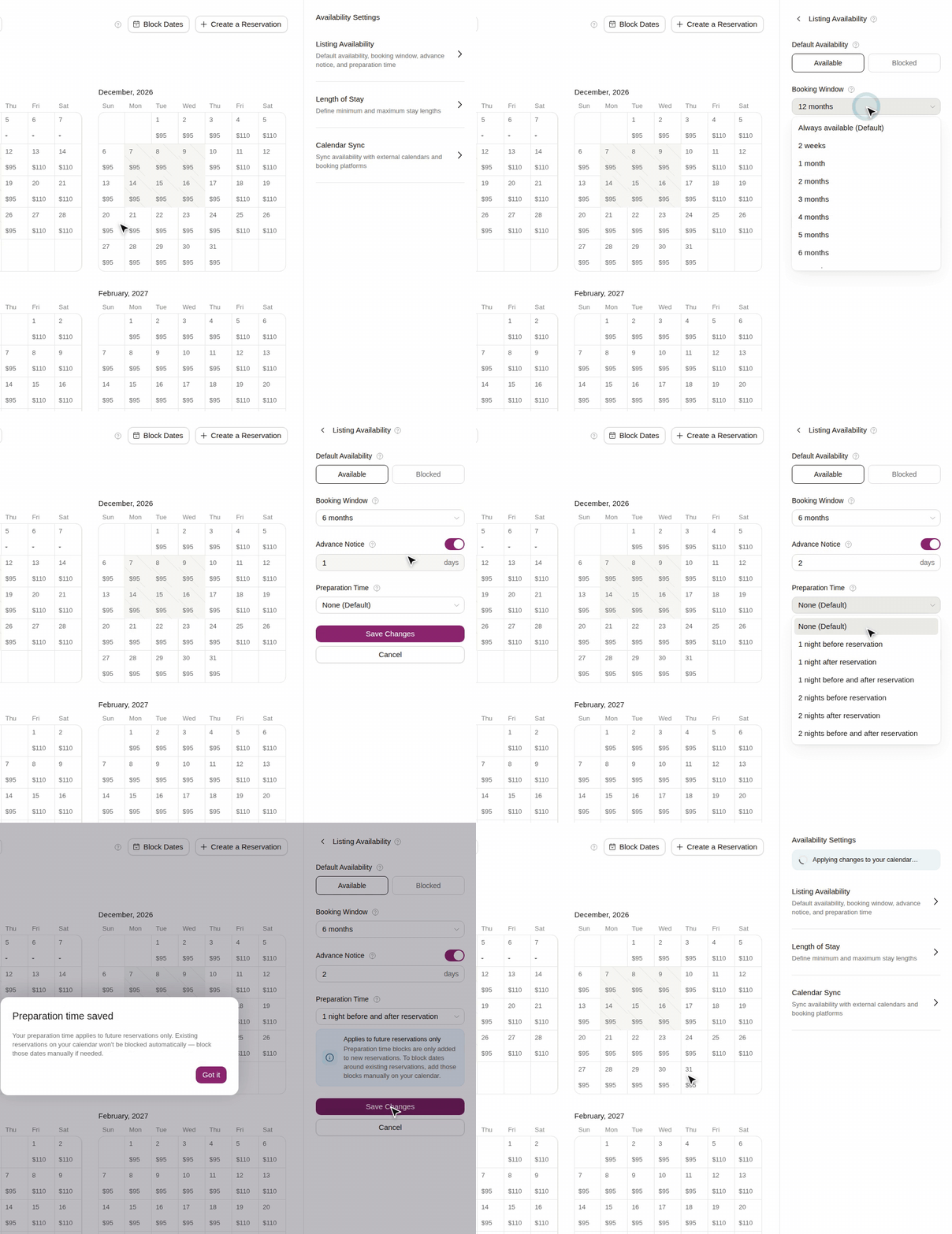
These rules show as striped days on your calendar. To open those dates, change the setting rather than the day.
Set minimum and maximum nights
- Open Calendar and select the property.
- Select Length of Stay. On a phone or small screen, select Settings first.
- Enter the minimum and maximum stay length in nights, from 1 to 1,000. Properties in New York City need a minimum stay of 30 nights or more.
- Select Save Changes. You'll see Stay length settings updated.
The same limits apply to every date. With a minimum of 30 nights or more, Pricing shows a monthly rate (see the Pricing, discounts and fees guide).
Part 4: Add a reservation you arranged yourself
If a guest contacts you directly, create the reservation in Andora and send them the checkout link. They pay on RoveTravel.com, and the dates are held once they've paid.
- Open Calendar, select the property, then select Create a Reservation. You can also hover over a free date (on a phone, select it) and select Create a Reservation. On the calendar that shows all your properties, select the check-in date and then the check-out date in a property's row, then Create a Reservation. To book 1 night, select the same date twice.
- Select the check-in and check-out dates and the number of guests. Andora lets you create a reservation over blocked or synced dates, so check that the dates are free everywhere before you share the link.
- Leave the guest total empty to charge your listing price. Or enter the full amount the guest should pay, and the fees and taxes are worked out from it.
- Enter the guest's first name, last name and email address. A phone number is optional.
- Check the price on the right, then select Create a Reservation.
- Copy the link under Share Checkout Link and send it to your guest. We don't send it for you.
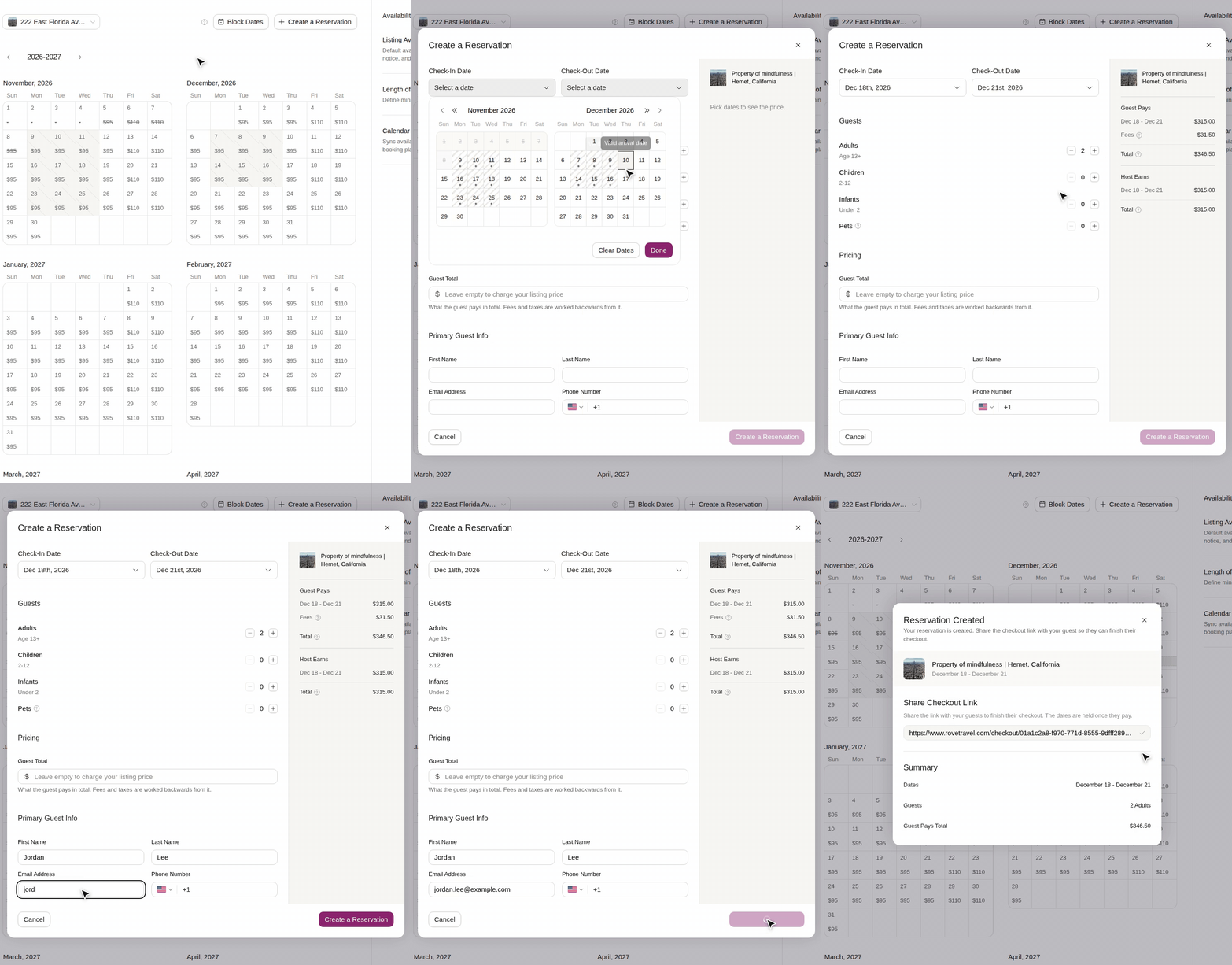
Until the guest pays, the stay shows as Unpaid on your calendar and other guests can still book those dates. Unpaid stays don't appear in Reservations.
To copy the link again or cancel, hover over the stay on your calendar (on a phone, select it) and select View Reservation.