
Getting paid
On this page
When guests pay for a stay on RoveTravel.com, we send your earnings to your bank account through Stripe, our payment partner. This guide walks you through setting up payouts, seeing when you're paid, changing where your payouts go and reading each line of your earnings. If we manage your property on Rove+ or Rove Lite, you won't see Payouts or a payout list; Performance → Earnings shows your earnings by month.
Part 1: Set up payouts
- Open the account menu (your organization's name, at the bottom of the sidebar), select Settings, then Payouts. On a phone, open the account menu at the top right and select Payouts.
- Select Add a payout method.
If you don't see it, your role may not allow it. Only Admins can set up and change payouts; Members and Viewers can open Payouts, the payout list and each reservation's breakdown, but can't change anything. Ask an Admin on your team to change your role (see the Your team and account guide). - Enter a name for the account that you'll recognize, such as your name or your company's name. Don't leave it blank.
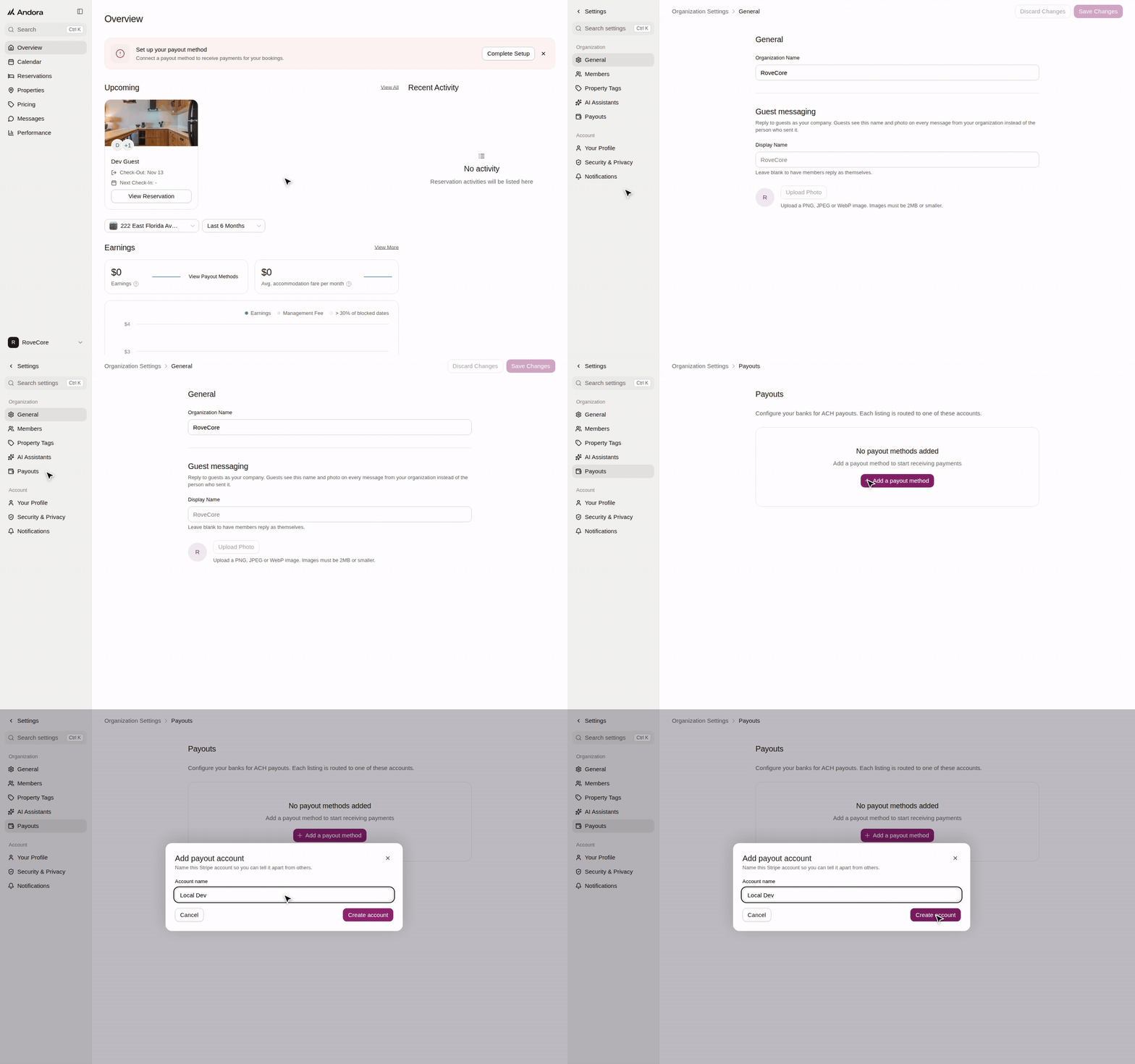
- Select Create account. Stripe opens in the same tab.
- Follow Stripe's steps to add your details and your bank account. When you've finished, Stripe brings you back to Payouts.
Once Stripe turns on payouts, your bank appears on Payouts. Your first bank is marked Default.
You can also start from Overview: select Complete Setup on the Set up your payout method banner, or Add Payout Method under Your next steps.
We can only send payouts once your setup is complete. Any that come due before then wait until it is.
Why does it say my payout setup is incomplete?
Stripe still needs something from you, or is still checking your details, before it can send payouts.
- Select Fix Payout Method on the Your payout setup is incomplete banner, or open Payouts as in step 1.
- Find the account that says Setup is not complete. Continue in Stripe to enable payouts. and select Continue setup.
- Finish the steps Stripe shows you. Stripe brings you back to Payouts.
The message goes away once Stripe has turned on payouts and your bank is on file. If it doesn't, email support@andora.ai with the name of the payout account.
If you started an account by mistake, select Remove on it, then Remove account. You'll see Payout account removed. You can only remove an account that isn't set up yet and hasn't been used.
Part 2: Check when you'll be paid
Payouts start after your guest checks in, and each reservation we took payment for shows when to expect its payout.
- Open Reservations and select View Details on the reservation.
- Select View Breakdown in the Earnings card.
- Check the lines under Payouts:
- Expected from and a date: the earliest day the payout can start. Hover over the question mark beside it (on a phone, select it) to see how that day is worked out.
- Processing: that day has passed and the payout hasn't been sent yet.
- Sent and a date: the payout is on its way to your bank.
- Paid and a date: the transfer is complete.
When we send a payout, we email you Your payout of … has been sent, with when to expect it in your bank.
If the guest pays in installments, each payment has its own payout, so you'll see a line for each. If a payout stays on Processing, check that your payout setup is complete (see Part 1).
Find all your payouts
Your payouts are listed on Performance, below the earnings chart.
- Open Performance (on a phone, More → Earnings) and stay on the Earnings tab.
- Select the property at the top right. The list shows 1 property at a time.
- Select Last 3 Months, Last 6 Months or Last 12 Months.
- Scroll below the chart. Each payout shows its Status, Date, Booking, Channel, Payout Method and Amount.
The Status tells you where each payout is:
- Upcoming: the payout is waiting for us to approve and send it.
- Sent: it's on its way to your bank.
- Paid: the transfer is complete.
- Failed: your bank didn't accept it (see below).
Date is when the status last changed. Select the guest's name to open the reservation.
If there's no list below the chart, that property had no payouts in that period. If you see Refunded, email us with the property, the guest's name and the dates, and we'll explain.
If an Airbnb or Vrbo reservation has no payout, see the FAQ.
What if a payout fails?
- Open Payouts as in Part 1.
- If your account says Setup is not complete. Continue in Stripe to enable payouts., select Continue setup and finish Stripe's steps.
- If it doesn't, select the gear icon (Manage in Stripe) and check your bank details there.
- Email us with the property, the guest's name, the dates and the payout amount, and tell us what you changed.
Our team can send a failed payout again once your bank details are fixed.
An email saying a guest's mid-stay rental payment failed is about the guest's card, not your payout. We've asked the guest to update their payment method, and the payout for that payment waits until they pay.
Part 3: Change where your payouts go
Open Payouts as in Part 1. Each payout account is listed with its banks. From there:
- To update a bank, select the gear icon beside the account (Manage in Stripe), then update your bank in the Stripe tab that opens.
- To make a bank your main one, select Set as default on it. You'll see Default payout account updated.
- To send a property's payouts to a particular bank, select Assign listings (or … listings assigned) on that bank. Select the properties under Properties, then select Save. You'll see Listing assignments updated.
- To pay a different person or company, select Add another account and set it up as in Part 1, then assign properties to its bank.
Each property pays into 1 bank. Properties you haven't assigned are paid into your Default bank. Payouts already shown as Upcoming or Sent keep the bank they were set up with.
Once an account is set up, you can't remove it yourself. If you need to close one, email us with the account's name.
Can I split payouts with a co-host or manager?
Not by percentage. Each property pays into 1 bank account, but different properties can pay into different accounts.
Set up a payout account for each person or company, then use Assign listings to decide which properties pay into each one. Splitting a single property's earnings is between you and your co-host or manager.
Part 4: Read your earnings and fees
Host Earns is what you earn from a reservation. Its breakdown shows how that's worked out.
- Open Reservations and select View Details on the reservation. You can also open the guest's conversation in Messages and find the Earnings card under Details.
- Select View Breakdown in the Earnings card.
- Check the lines under Host Earns:
- The stay dates: your nightly total after any discount, before fees are taken off.
- Host Service Fee: the booking site's fee, such as Airbnb's, taken from your earnings.
- Fees Paid by Guest: fees that come to you, such as your cleaning and pet fees. Select it to see each one.
- Management Fee: our fee for managing your property or its pricing, if your plan includes one.
- Processing Fees: card and other payment-processing fees taken from your earnings, when they apply.
- Total: what you earn.
A line only shows when it has an amount. Guest Pays, above it, is everything the guest paid, including fees and taxes. For what RoveTravel.com guests pay, including Rove's service fee, see the Pricing, discounts and fees guide.