
Requests to book
On this page
When Instant book is off for your property, guests on RoveTravel.com send you a request to book, and nothing is confirmed until you answer. This guide walks you through approving and declining requests, the 24-hour response window, pre-approvals and special offers, then requests from Airbnb and Vrbo. If we manage your property on Rove+ or Rove Lite, our team answers requests for you.
Part 1: Approve or decline a request
- Open the guest's conversation in Messages. A request waiting for your answer shows Pending.
- Check the dates, guests and earnings in the Details panel. On a smaller screen, select View Details first.
- Select Approve, on the request card in the conversation or in the Details panel.
If you see Your role does not include booking actions instead of the buttons, your role doesn't allow it. Admins and Members can approve, decline, pre-approve and send special offers; Viewers can read the conversation but can't answer. Ask an Admin on your team to change your role (see the Your team and account guide).
To change a teammate's role, an Admin opens the account menu (your organization's name, at the bottom of the sidebar) and selects Settings, then Members. On a phone, they open the account menu at the top right and select Team Members. - Check the dates, guests and what you'll earn in Approve …'s Request to Book, then select Approve Request.
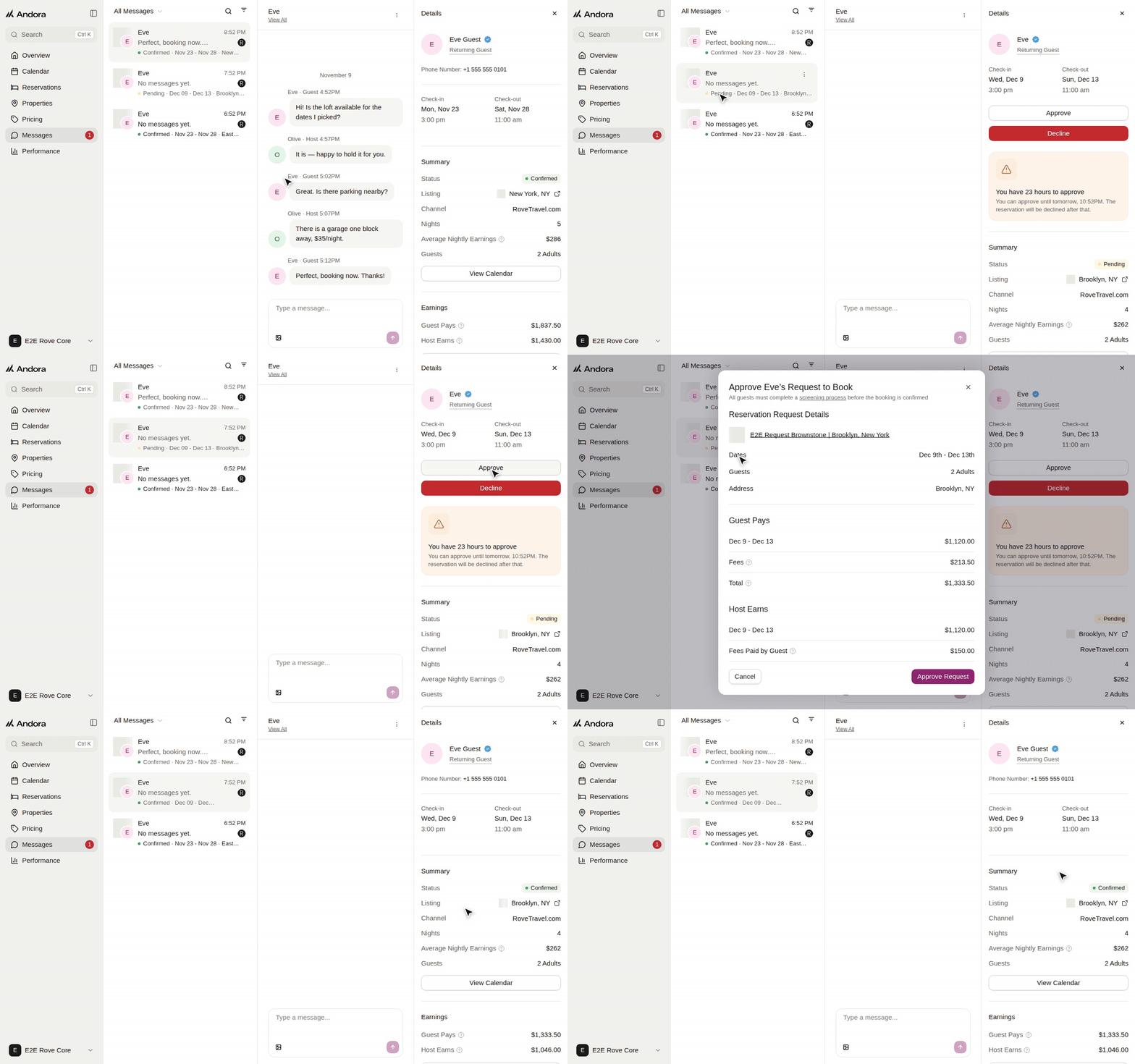
We then take the guest's payment and confirm the reservation. The conversation's status changes to Confirmed, and the nights are booked on your calendar.
The Approve Request button in our request emails opens the same window. You can also answer requests in the mobile app.
Waiting requests are also listed in Reservations → Pending. Select View Details, then Message, to open the conversation and answer it there.
If no one on your team sees the buttons, the request has already been answered, canceled by the guest or declined automatically. If none of those apply, email support@andora.ai with the guest's name, the property and the dates.
What if the guest's payment doesn't go through?
You'll see Request approved with the time the guest has to pay. They have 24 hours to complete their payment, and the reservation is confirmed as soon as they do. Until then, the Details panel shows Waiting on the guest's payment.
If they don't pay in time, we cancel the request and email you. The dates stay open, and there's nothing you need to do.
Decline a request
- Open the guest's conversation in Messages.
- Select Decline, on the request card or in the Details panel.
- Add your reason for declining in Decline Request to Book, if you like. It's optional, and the guest gets it as a message from you.
- Select Decline Request. The conversation's status changes to Declined.
We release the hold on the guest's payment and email them to help them find another place to stay. Declining doesn't change your calendar.
If you'd like to offer the guest other dates or a different price, you can still send them a special offer (see Part 3).
Part 2: Respond within 24 hours
You have 24 hours from when the guest sends a RoveTravel.com request. Only Approve or Decline stops the clock; replying to the guest doesn't.
- The Details panel shows how long you have left, such as You have 19 hours to approve, and the exact deadline.
- We email everyone on your team who has access to the property when the request arrives: You have a new request. We email them again when 12 hours are left: Reminder: 12 hours left to approve the reservation for ….
What happens if no one answers in time?
We decline the request for you, release the hold on the guest's payment and let the guest know. Your team gets an email: Reservation for … was auto-declined.
We also block those nights on your calendar, with the reason Auto-declined Request, so guests can't keep requesting them. If the nights are free, remove the block (see the Calendar and availability guide). The guest can then send a new request, or you can send them a special offer.
Airbnb and Vrbo set their own deadlines (see Part 4).
Part 3: Answer guests who haven't booked
A guest who has only sent a message shows Initial Interest in Messages. You can pre-approve them for the dates they asked about, or send a special offer with your own dates and price.
Pre-approve a guest
Pre-approving lets the guest book without sending you a request to approve. You can pre-approve RoveTravel.com and Airbnb guests when Instant book is off.
- Open the conversation in Messages.
- Select Pre-approve, on the guest's card in the conversation or in the Details panel.
- Select Pre-approve again in Initial interest pre-approval. You'll see Pre-approval sent in the Details panel.
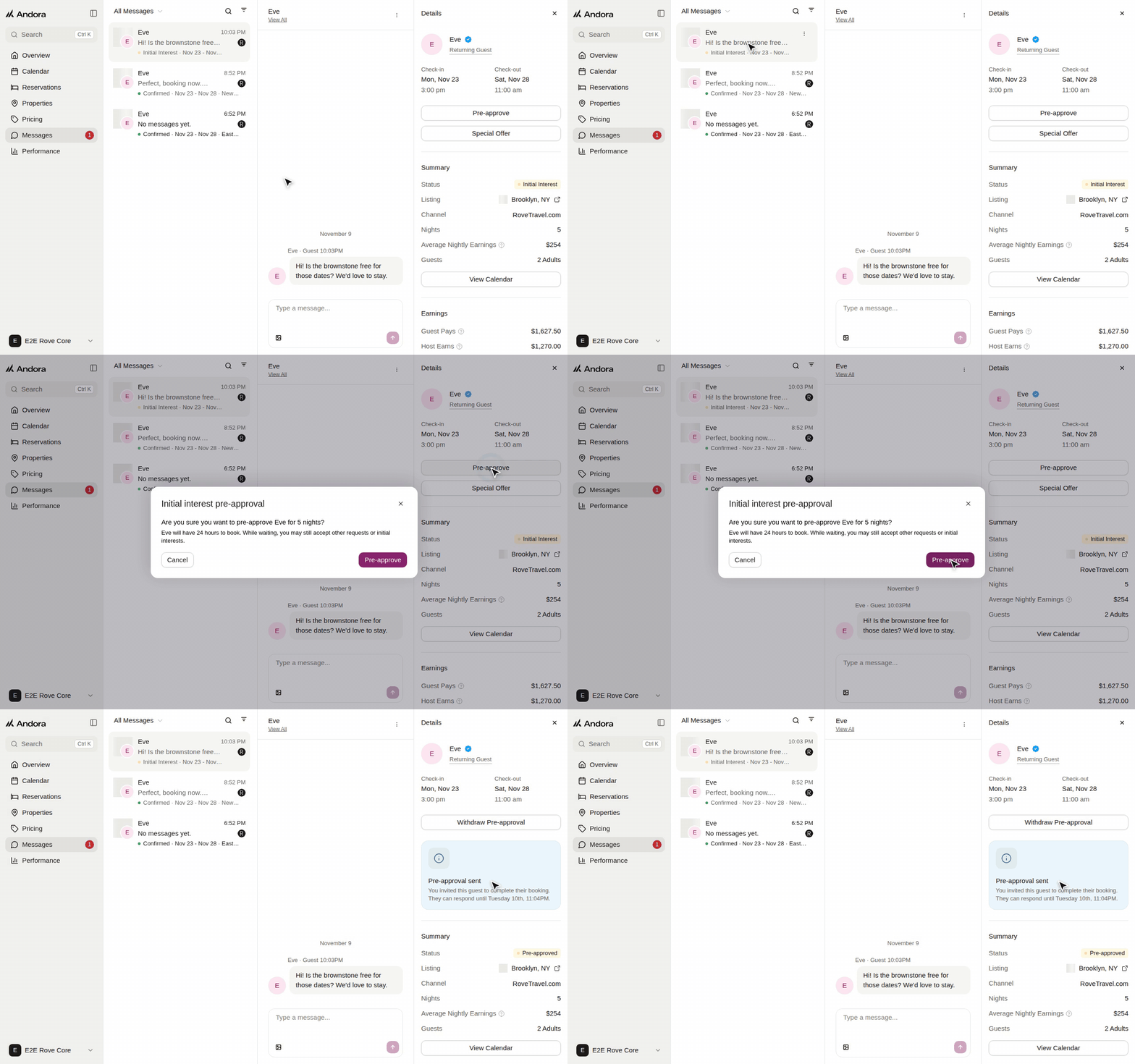
The guest has 24 hours to book the dates in the conversation. When they pay, the reservation is confirmed straight away. If they ask for other dates, those come in as a normal request.
A pre-approval doesn't hold your calendar, so you can still accept other guests. To take back a RoveTravel.com pre-approval, select Withdraw Pre-approval in the Details panel, then Withdraw Pre-approval again.
If no one on your team replies within 24 hours of a RoveTravel.com guest's first message, the conversation shows Initial Interest Expired. You can no longer pre-approve them, but you can still send a special offer.
Send a special offer
A special offer lets a RoveTravel.com guest book the dates you offer, at your current price or less. Special offers are for RoveTravel.com guests only.
You can send one to a guest who has messaged you, or after a request has been declined. While a request is waiting, approve or decline it first.
- Open the guest's conversation in Messages.
- Select Special Offer in the Details panel.
- Select the check-in and check-out dates.
- Check the guest total, which shows your current price for those dates. It's the full amount the guest pays, including fees and taxes. Lower it if you like; it can't be higher than your current price. If it is, you'll see Guest total cannot exceed the current price of $….
- Check the price breakdown, then select Send Special Offer. You'll see Special offer sent in the Details panel.
The guest has 24 hours to accept, and the reservation is confirmed as soon as they pay. An offer doesn't hold your calendar.
A new offer replaces the last one. To take an offer back, select Withdraw Special Offer, then Withdraw This Offer.
Part 4: Handle Airbnb and Vrbo requests
Requests from Airbnb and Vrbo also appear in Messages and under Reservations → Pending. Approve or decline them the same way as in Part 1, and we send your answer to that site.
Airbnb or Vrbo sets the deadline and decides what happens if you miss it. Andora doesn't show a countdown, send the 12-hour reminder or block dates for these requests, so check the deadline on that site.
A few other things work differently:
- While they wait, Airbnb and Vrbo requests show on your Calendar. RoveTravel.com requests appear there once you approve them.
- In Reservations, RoveTravel.com requests show the status Inquiry, and Airbnb and Vrbo requests show Pending.
- You can pre-approve Airbnb guests who have only messaged you, but special offers are for RoveTravel.com guests only.
- Instant book in Andora applies to RoveTravel.com. Your Airbnb and Vrbo listings keep their own booking settings.