
Andora AI
On this page
Andora AI is the assistant built into Andora. Ask it about your properties, reservations, calendar and earnings, get help with how Andora works and have it prepare calendar changes for you to approve. This guide walks you through each of these and how to find your past chats. Setting up Andora AI to answer your guests is covered in the Messages, AI and automations guide.
Part 1: Open Andora AI
- Select the round Andora AI button at the bottom right of any page. A bar opens at the bottom of the page.
- Type your question in Ask Andora AI to do anything. Shift + Enter starts a new line.
- Press Enter or select the send arrow. You'll see Thinking… while it works, then the answer above the bar.
- To ask a follow-up, type it in the bar. Andora AI remembers the conversation so far.
- To see the whole conversation, select Open in panel.
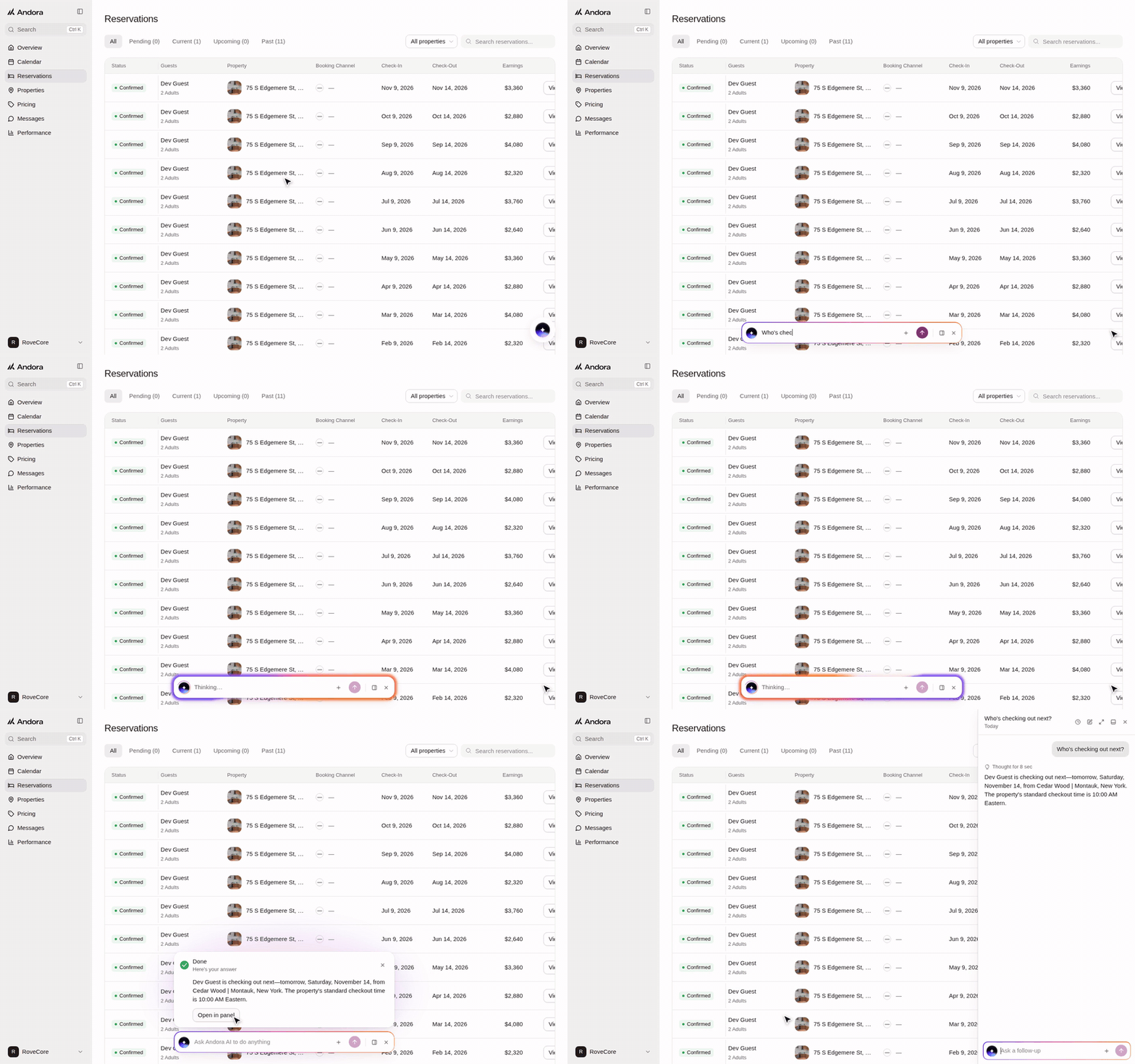
To hide the answer, press Esc or select the x on it. To close Andora AI, select the x in the bar.
The panel has these buttons at the top:
- Recent chats (the clock): open an earlier chat (see Part 6).
- New chat (the pen): start a new chat.
- Enter full screen: give Andora AI the whole window. Press Esc to go back.
- Minimize to bar: go back to the bar.
- Close Andora AI: close it. Andora AI opens the same way, bar or panel, next time.
To make the panel wider or narrower, drag its left edge.
Ask from search
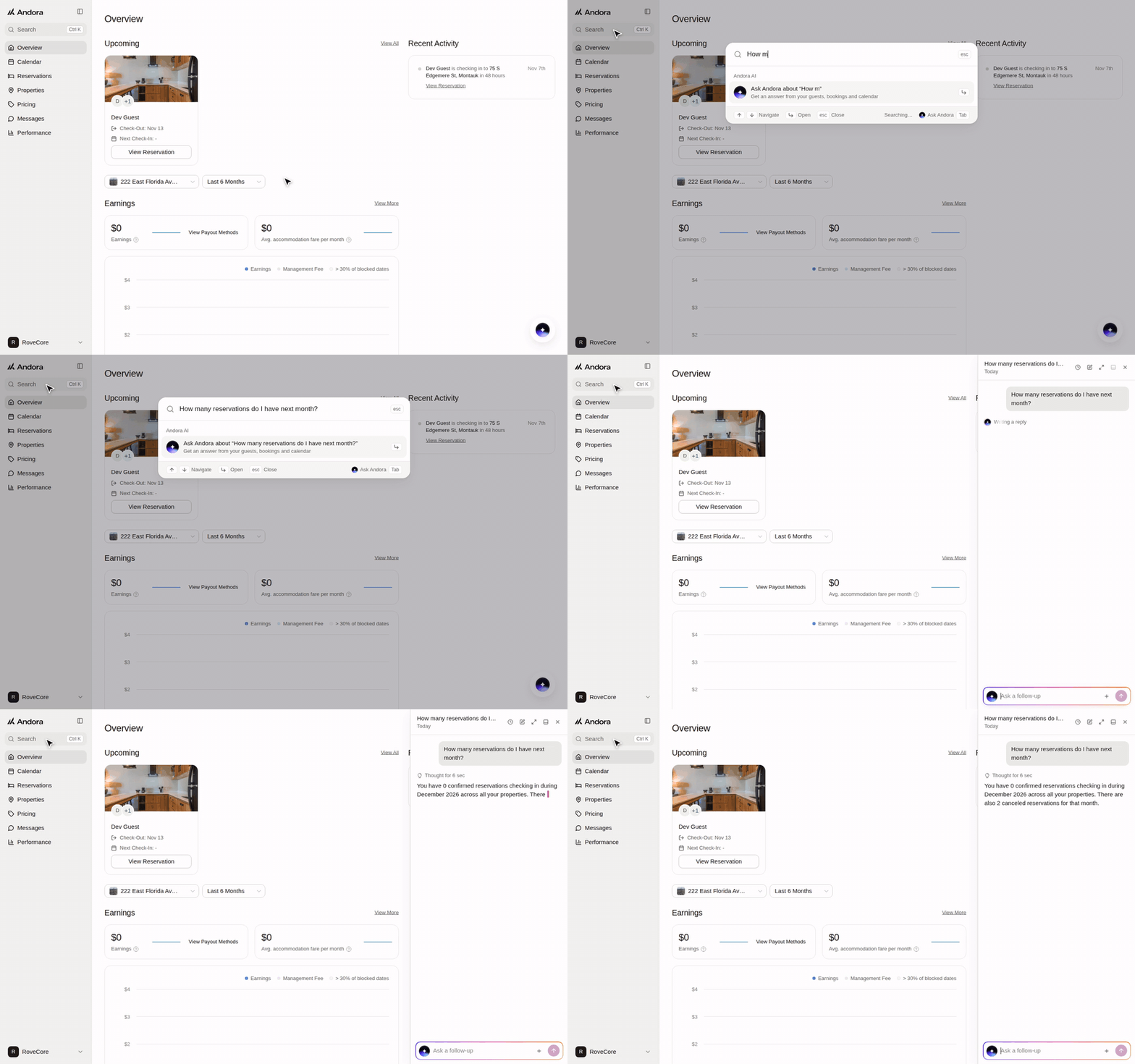
- Press ⌘ + K on a Mac (Ctrl + K on Windows), or select Search at the top of the sidebar.
- Type your question.
- Select Ask Andora about "…", or press Tab. Andora AI opens in the panel and answers in a new chat.
On a phone
In your phone's browser, select the Andora AI button at the bottom right. Andora AI fills the screen; select the x to go back. It closes when you go to another page.
In the Andora app for iPhone, it's called Ask Andora. Select the Andora button at the end of the tab bar, or the one beside the message box in a guest conversation. The button at the end of the tab bar needs iOS 26 or later. The first time, you'll see Before you ask Andora, which explains what's shared to answer your questions. Select Agree and continue.
What if I don't see the Andora AI button?
Andora AI isn't turned on for your account yet. Email support@andora.ai and include your account email.
Part 2: Ask about your account
Andora AI looks up your Andora account to answer. You can ask about:
- Properties: their settings and which sites each one is listed on.
- Reservations: a stay by guest or dates, its fees and payment schedule, a guest's past stays and who's checking in or out.
- Calendar: open, booked and blocked nights, minimum stays, nightly prices and why a night costs what it does.
- Pricing and fees: your pricing settings and the fees booking sites take.
- Earnings and payouts: earnings, reservations and payouts for any period, compared with an earlier one, and when your next payouts are expected.
- Reviews: what guests have said about your properties.
- Analytics: how often your listing was viewed on RoveTravel.com in the last 30 days, and how many views became reservations.
- Messages: a guest conversation and what was said in it, including internal notes.
- Automations: the automatic messages you've set up.
It also knows which page you're on. On Performance, it uses the property and period you've selected. With a reservation or a guest conversation open, you can ask about "this guest" or "this reservation".
Some questions to try:
- Who's checking in this weekend?
- How much did I earn in October compared with September?
- Why is December 31 priced higher than December 30?
- Which nights are still open in December?
Answers can include lists, tables and a chart. Buttons under an answer take you to the page, conversation or listing it mentions. Andora AI answers in the language you write in.
What if it says something is hidden?
Andora AI shows you only what your role can see in Andora. If you ask about something your role doesn't include, such as payouts, it tells you it's hidden. An Admin on your team decides roles (see the Your team and account guide). If we manage your property on Rove+ or Rove Lite, some details are ours to manage, and it tells you when that's the reason.
Andora AI doesn't compare your prices with other listings in your area.
Part 3: Get help with Andora
Ask how something in Andora works, such as "How do I add a cleaning fee?" A new chat suggests 3 questions to start with: How do payouts work?, How do I block dates? and What does my plan include?
Andora AI answers from our help for hosts on your plan. When it doesn't know, it says so, gives you any step you can take and suggests contacting us at support@andora.ai.
For legal, tax or insurance questions, it tells you what our help says and suggests asking a professional. If someone is hurt or in danger, call local emergency services first.
Part 4: Attach a screenshot or PDF
Show Andora AI what you're looking at, such as a message from a guest, a bill or a page from another site.
- Select + next to the send arrow and choose your files. You can also paste a screenshot or drag files onto Andora AI. If you attach a file from the bar, the panel opens.
- Type your question and send it.
You can attach up to 4 files to a message, 10 MB each: PNG, JPEG, WebP or PDF. A PDF can have up to 20 pages and can't be password-protected. Other formats, such as HEIC photos from an iPhone, can't be attached; take a screenshot instead. If a file can't be attached, a message says why, such as receipt.pdf is over 10 MB.
Andora AI reads what's in the file and checks any figures against your account. It doesn't repeat door codes, passwords, or card or bank numbers.
Files you attach but don't send are removed after 24 hours.
Part 5: Approve changes Andora AI prepares
Andora AI can prepare these changes for you:
- Block or unblock nights: with a reason, such as Owner Stay, and a note.
- Edit a block: change its reason or note.
- Minimum nights: set or reset the minimum stay for a range of dates.
- A reservation you arranged yourself: create one for your guest. It needs the guest's first and last name, their email and the number of adults.
Nothing changes until you approve it.
Get changes turned on
Changes are off until our team turns them on for your account. If you'd like us to turn changes on, email support@andora.ai with your account email.
Once they're on, you can approve only the changes your role allows in Andora. For example, if your role can't block dates on Calendar, you can't approve a block in Andora AI either.
To approve changes in the Andora app, update it to the latest version.
Approve a change
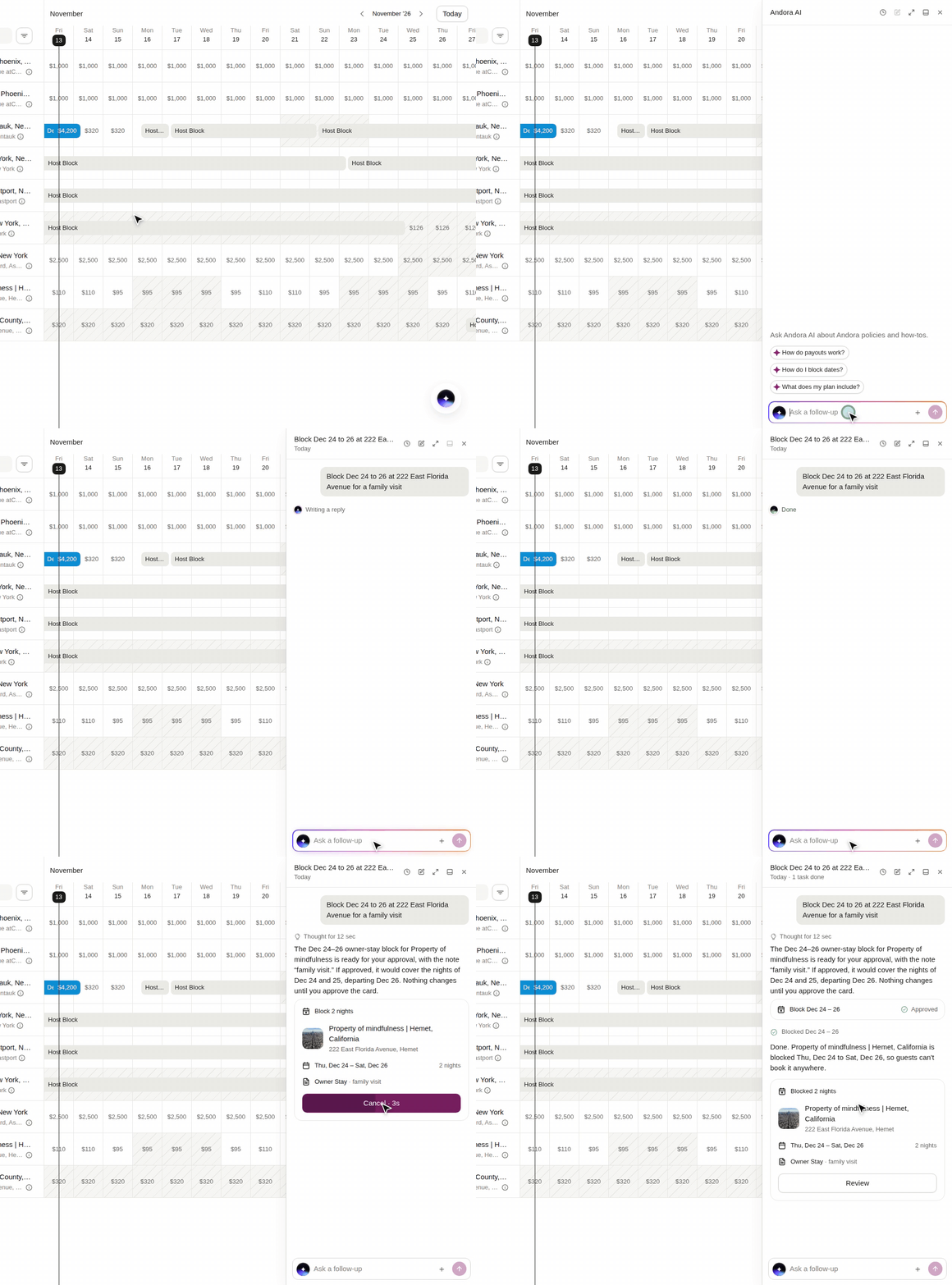
- Ask for the change, such as "Block December 24 to 26 at 222 East Florida Avenue for a family visit".
- Check the card under the answer: the property, the dates, the number of nights and the reason. Dates work like a stay, so "December 24 to 26" blocks the nights of December 24 and 25.
- Select Approve. For a reservation, select Review to check the details, then Create.
- The button counts down from Cancel · 5s. Select it within 5 seconds if you change your mind. If you leave the page during the countdown, the change still goes through.
- When the card shows Approved, Andora AI confirms what changed. Select Review to open that property's calendar.
After Andora AI creates a reservation, select Copy checkout link and send it to your guest. The reservation doesn't hold the dates until your guest pays (see the Calendar and availability guide).
To reverse a change, ask Andora AI for the opposite, such as "Unblock those dates", and approve the new card. There's no undo button. Andora AI can't cancel a reservation; cancel it from the reservation instead (see the Reservations and reviews guide).
What if the card says it's out of date?
Out of date. Ask again for a fresh card. means something changed after the card was made, such as a new reservation on those dates. Ask again for a new card.
If a card says Interrupted. Check whether it went through before asking again., open the property's calendar and check before you ask again.
What if it says it can't make the change?
- If it says it can't make changes yet, changes aren't turned on for your account. Email support@andora.ai with your account email to ask us to turn them on.
- If it says your role can't make the change, ask an Admin on your team to make it or to change your role (see the Your team and account guide).
Andora AI can't change prices, edit your listing, answer requests to book or send messages to guests. When you ask, it tells you the current setting and where to change it yourself.
Draft a reply to a guest
With a conversation open in Messages, ask Andora AI to draft a reply. The draft appears under Reply for the guest, in the guest's language. Select Copy, paste it into the message box and send it yourself. Andora AI doesn't send messages to guests.
Part 6: Find your past chats
- Open Andora AI and select Open in panel.
- Select Recent chats (the clock). Your chats are listed newest first. A chat where you approved changes shows how many, such as 1 task done.
- Select a chat to carry on where you left off. Select Load more to see older chats.
To start over, select New chat (the pen). Andora AI remembers the last 20 messages of the chat you're in, not your other chats, so start a new chat for a new topic.
Teammates can't see your chats. You can't rename or delete a chat.
If you have the Andora app, it sends you a notification when an answer has been waiting unread for 10 seconds, such as when you close Andora AI before it finishes.
Part 7: Fix a problem
- Andora AI couldn't answer that right now. Try again, or contact Andora support.: send your question again.
- Not sent: select Retry. If your files expired, attach them again or select Send text only.
- An answer about your account looks wrong: check the page it's about, such as Calendar or Performance, then tell Andora AI what's wrong and ask again.
If you're still stuck, email support@andora.ai. Include what you asked, the date and time you asked it and the page you were on.