
Reservations and reviews
On this page
Every reservation at your properties is in Reservations, from new requests to past stays. This guide walks you through finding a reservation, date changes, cancellations, guest checks, damage and reviews. If we manage your property on Rove+ or Rove Lite, you can see your reservations and reviews, and our team handles guest messages and date changes.
Part 1: Find a reservation
- Open Reservations. On a phone, select More → Reservations.
- Select a tab:
- All: requests and confirmed reservations.
- Pending: requests that aren't confirmed yet (see the Requests to book guide).
- Current: guests staying now.
- Upcoming: confirmed reservations that haven't started yet.
- Past: stays that have ended.
- Select a property from the All properties menu to narrow the list, or enter a guest's name or an address in the search box.
- Select View Details to open Reservation Details.
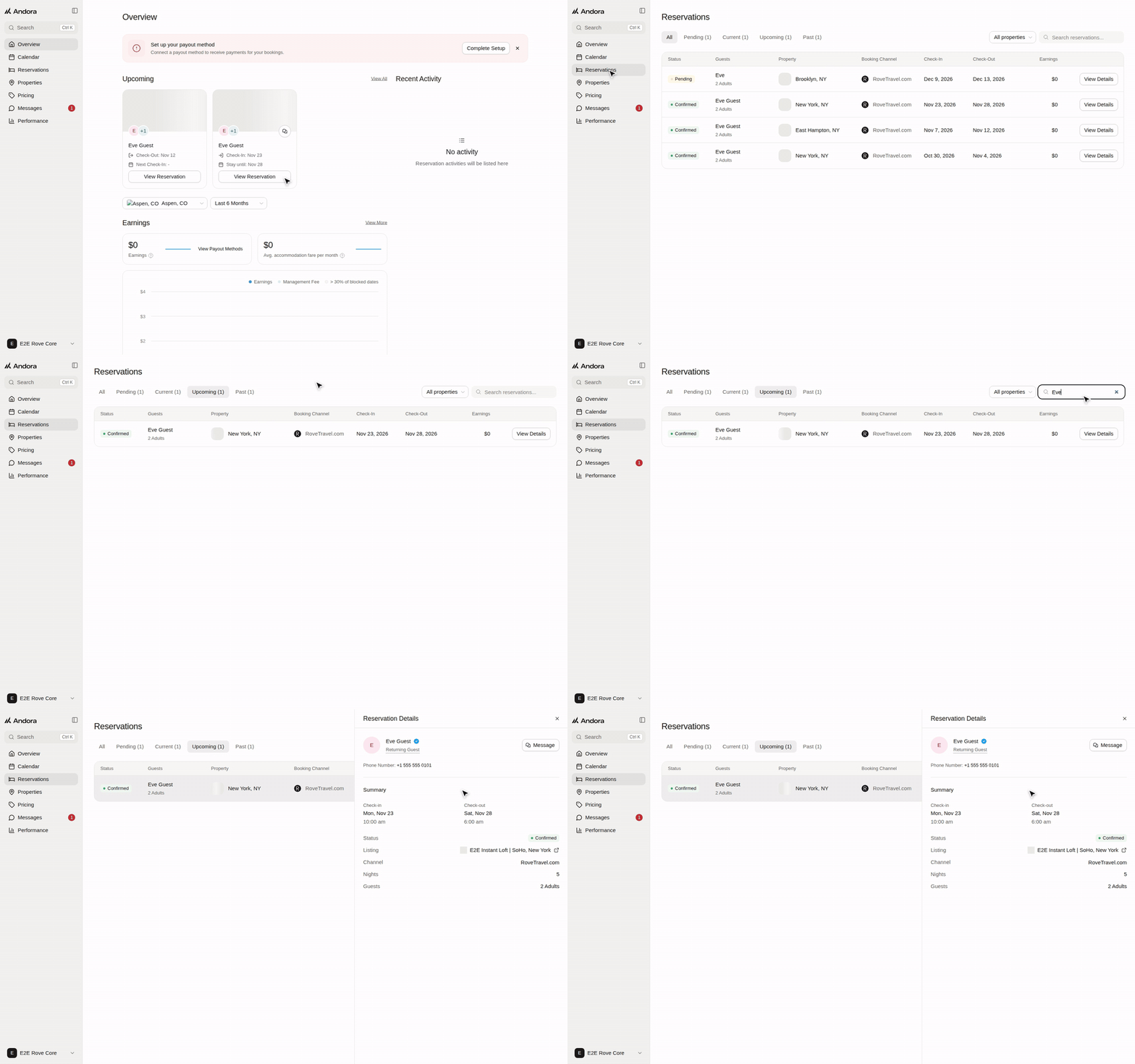
In the list, the Status column shows Pending or Inquiry until a request becomes a reservation, and Confirmed once it's booked.
Reservation Details shows the guest, the property, the status and where the guest booked. It also shows the check-in and check-out times and the number of nights and guests.
Returning Guest under the name means the guest has completed a stay with us before, at your property or another.
Where a reservation has earnings, select View Breakdown in the Earnings card for the details (see the Getting paid guide). To write to the guest, select Message.
Admins and Members can do everything in this guide that happens in Andora. Viewers can see reservations, conversations and reviews, but can't message guests or answer date change requests.
What if a reservation isn't listed?
Canceled and declined reservations aren't listed, and neither are guests who have only sent a message. You'll find their conversations in Messages. Unpaid reservations you created yourself are on your Calendar (see the Calendar and availability guide).
Part 2: Answer a date change request
A guest who booked on RoveTravel.com asks for new dates from their reservation, using Change Reservation. You answer in their conversation in Messages.
Answer within 24 hours. After that, the request expires and the guest has to ask again.
- Open the guest's conversation in Messages. The View Request button in the Reservation Date Change Requested email opens the reservation instead, so select Message there to reach the conversation.
- Select View Request in the conversation, or View Details on the Reservation change requested banner in the conversation's details.
- Check the new check-in and check-out dates in Reservation change request, along with what the guest pays and what you'll earn.
- Select Approve to accept the new dates.
- If you're turning the change down, add a reason if you like, then select Decline.
Viewers can't answer change requests. If that's your role, ask an Admin or Member on your team to answer it, or ask an Admin to change your role (see the Your team and account guide).
The banner also has Approve and Decline buttons. Decline there turns the request down straight away, without a reason. You'll see Change request approved or Change request declined.
A reservation can have 1 change request at a time. New nights must be free on your calendar and fit your minimum and maximum stay, and they're priced at your current prices. If the stay gets shorter, our team handles any refund to the guest.
You can't start a date change yourself. Ask the guest to request it from their reservation, or email support@andora.ai with the property, the guest's name and the dates. Guests who booked on Airbnb or Vrbo change their dates on that site.
Part 3: Ask us to cancel or refund a reservation
You can't cancel a reservation or refund a guest in Andora. Email us and our team takes care of it. The FAQ explains what happens when you or a guest cancels.
- Email support@andora.ai.
- Include the guest's name, the property, the dates and where the guest booked.
- Tell us whether you need a cancellation or a refund, and why.
A guest can cancel a RoveTravel.com reservation themselves before check-in. Their refund follows the cancellation policy shown on your listing and at checkout.
Reservations made on Airbnb or Vrbo follow that site's cancellation and refund rules. Email us if you need to cancel one.
The only reservation you can cancel yourself is an unpaid one you created. Hover over it on your Calendar (on a phone, select it), then select View Reservation (see the Calendar and availability guide).
Part 4: Know how guests are checked and report damage
When Booking Pass is on for a reservation, the guest completes it after they book. It usually asks them to confirm their details, verify their ID with a selfie, sign the rental agreement and select a damage waiver or a card hold. The guest gets their check-in details only once their Booking Pass is approved.
Booking Pass isn't used for every reservation. It depends on where the guest booked and how your property is set up.
Guests staying under 30 nights who booked on Airbnb skip the ID check, because Airbnb verifies them. Returning RoveTravel.com guests who have already verified can skip it too.
If a guest worries you, email us before check-in with the guest's name, the property and the dates.
If a RoveTravel.com guest damages your property, the Rove Travel Host Terms say what to do. They ask you to "send us a claim with evidence as soon as you can after check-out; we may decline a late claim."
The FAQ explains damage protection and how to make a claim.
Part 5: Read and reply to reviews
Guests' reviews of your properties are under Reviews, in your account menu.
- Open the account menu (your organization's name, at the bottom of the sidebar) and select Reviews. On a phone, select More → Reviews.
- Select the property from the property menu on Received.
- Select View Full Review on the review you want to answer.
- Select Reply to followed by the guest's name.
- Write your reply, or select Draft Reply for an AI draft you can edit.
- Read your reply through, then select Submit. You can reply once, and you can't change or delete a reply after you submit it.
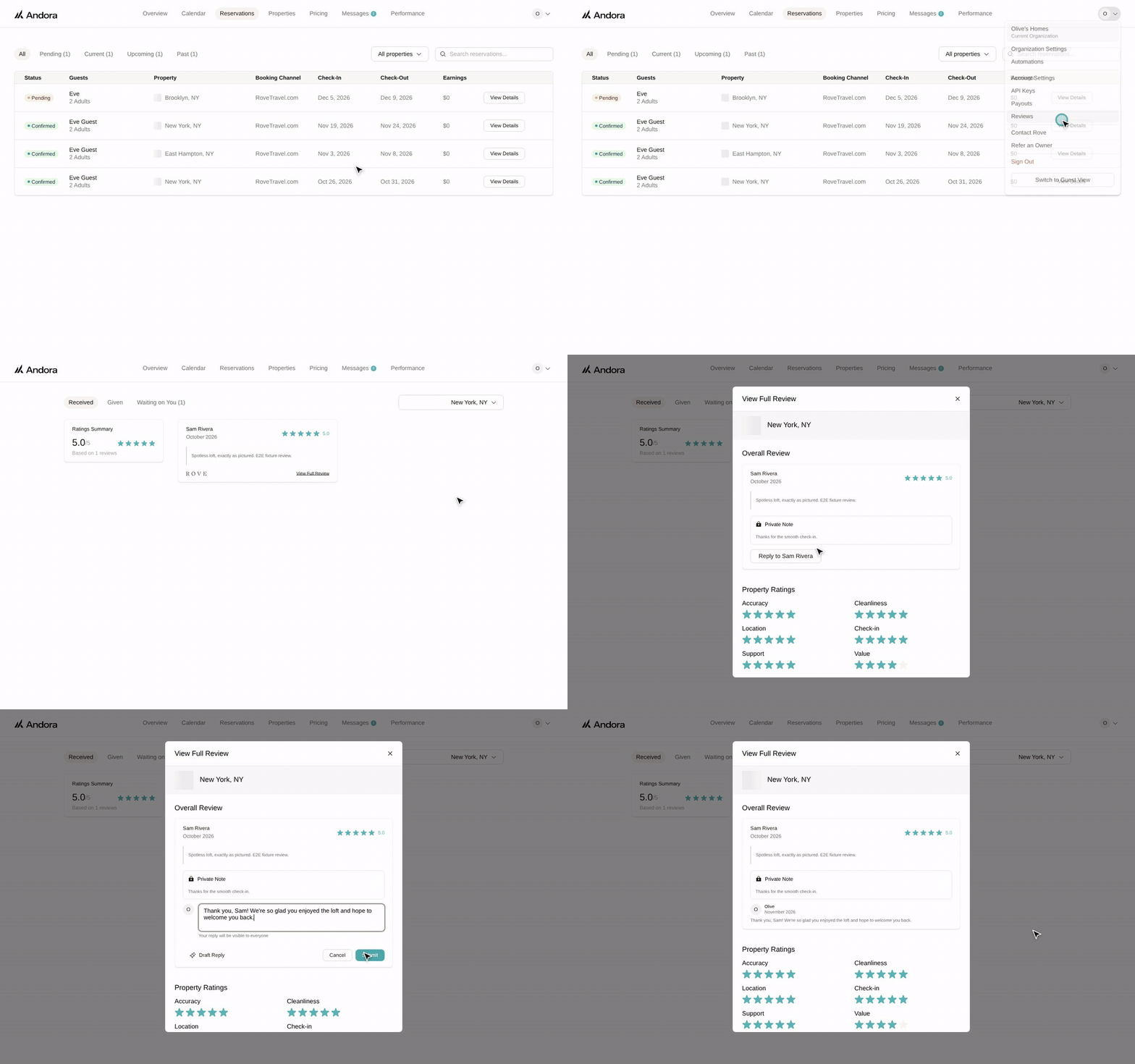
Your reply appears under the review in Andora and with the review on your RoveTravel.com listing.
Received shows reviews from RoveTravel.com, Airbnb, Vrbo and Booking.com. Replies aren't sent to Airbnb or Vrbo, so answer those reviews on that site too.
A Private Note in the full review is feedback the guest wrote only for you. To ask us to remove a review, see the FAQ.
Review a guest
You can review guests who booked on RoveTravel.com for 14 days after check-out. Guests who booked on Airbnb, Vrbo or another site can't be reviewed in Andora. Review them on that site.
- Open Reviews → Waiting on You, or open Reservations → Past and select View Details on the reservation. Waiting on You appears only while a guest is waiting for your review.
- Select Leave a Review.
- Select a star rating for the guest.
- Write your review, or select Draft Review for a first draft you can edit. Your review is marked Visible to everyone, so hosts the guest stays with later can read it.
- If you like, add a private note for our team in the box below. Only our team sees it.
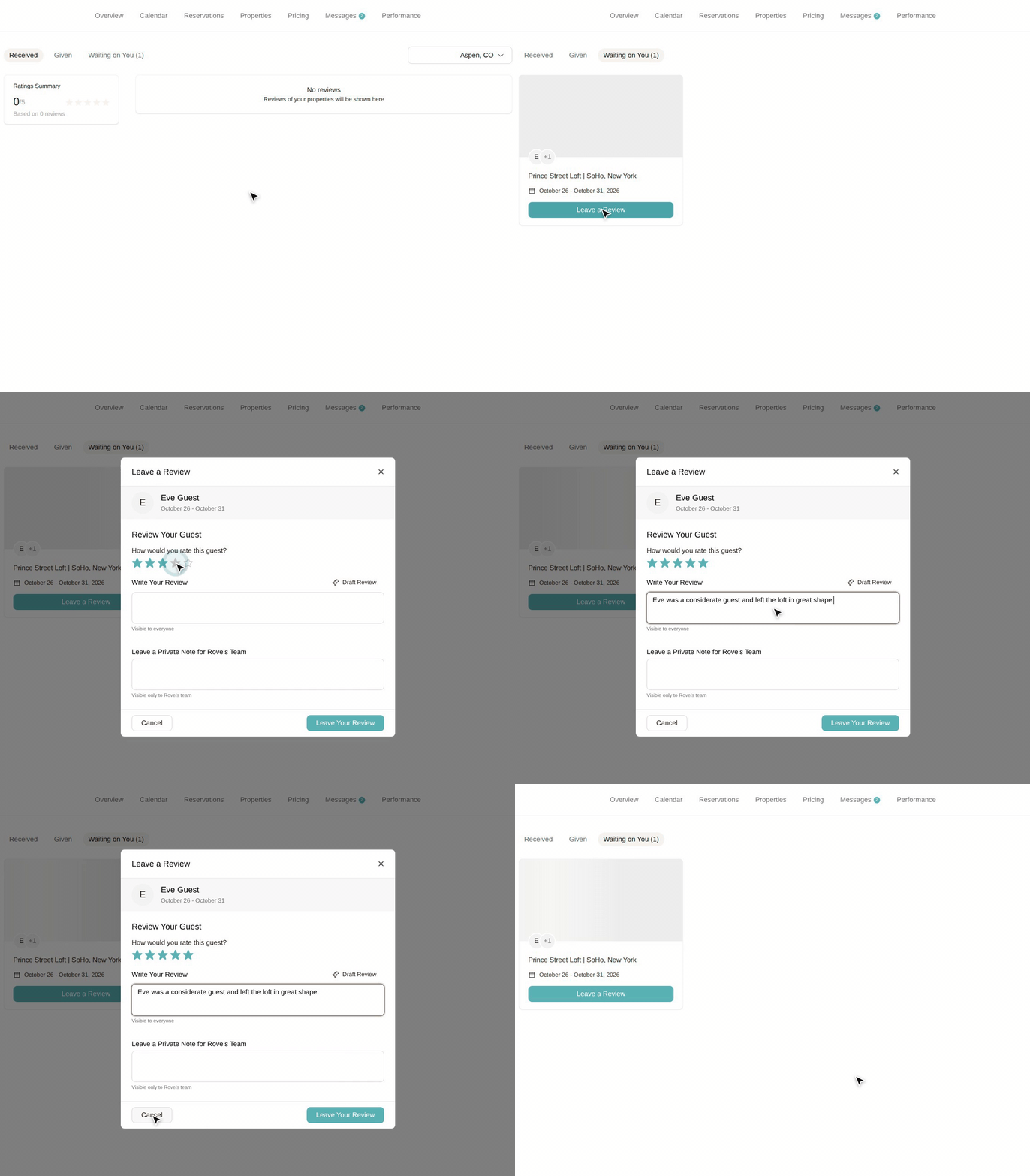
- Select Leave Your Review. You'll see Thank You for Your Review! You can't change a review after you submit it.
Reviews you've written are under Given.