
Getting more reservations
On this page
Guests find properties on RoveTravel.com by searching an area and dates, then narrowing the results with filters. This guide walks you through what decides where your listing appears and what you can do to get more reservations. It also explains the numbers on Performance.
Part 1: See how search shows your listing
Why isn't my listing showing up?
When guests enter dates, they only see properties that are open for those dates (or nearby dates, if they're flexible) and for at least each property's minimum stay. Nights you've blocked, dates from synced calendars and booking rules such as Advance Notice and Booking Window all close dates (see the Calendar and availability guide).
Filters narrow the list further. Guests can filter by price, number of guests, bedrooms, bathrooms, pets and a few amenities, such as an elevator, a doorman, a gym or a garden. Your listing only shows up in a filter when the matching details in Andora are filled in.
What order do listings appear in?
Today, search lists the properties guests can book soonest first. When guests haven't selected dates, each result shows that date, such as "Available Nov 12, 2026".
For your property, that's the first night a guest could check in and stay your minimum number of nights. A gap between reservations that's shorter than your minimum stay doesn't count. Listings with no open dates appear last.
Your photos, reviews, price and Instant book setting don't change that order. They're what guests look at when they decide between properties.
Our team selects the properties featured on the RoveTravel.com homepage.
Part 2: Get more reservations
- Keep your calendar open and accurate. Block only the nights you can't host, and check that synced calendars and booking rules aren't closing more dates than you mean to (see the Calendar and availability guide).
- Check your minimum stay. Guests searching for a shorter stay won't see your listing, and a long minimum can push your first available date later.
- Fill in the details guests filter on: your guest limit, bedrooms, bathrooms and amenities. If you welcome pets, turn on Allow pets (see the Editing your listing guide).
- Check your price against what guests will pay. Pricing shows the Estimated Guest Total, and weekly and monthly discounts reward longer stays (see the Pricing, discounts and fees guide).
- Answer requests to book within 24 hours. If a RoveTravel.com request goes unanswered, we decline it and block those nights (see the Requests to book guide).
- Give guests reasons to book your property: good photos, accurate house rules and a clear title and description (see the Editing your listing guide).
- Share your listing. In Properties, open the property's menu and select Share to copy a link or download a QR code (see the Editing your listing guide).
Guests read your reviews on your listing page. The Rove Travel Host Terms also say we may "limit, pause or remove a Listing that doesn't meet our standards or these Host Terms, including because of its ratings or Guest feedback."
If we manage your property on Rove+ or Rove Lite, some of these settings are ours to change. Email support@andora.ai with the property and what you'd like to change.
Part 3: Read your numbers on Performance
Performance shows 1 property at a time. Earnings covers money from your reservations on every site, and Analytics covers visits to your listing on RoveTravel.com.
- Open Performance. On a phone, select More → Earnings.
- Select the property shown at the top, then select the one you want. To find it by address, type in the search box.
- Select Last 3 Months, Last 6 Months or Last 12 Months on the Earnings tab. Each period includes the current month.
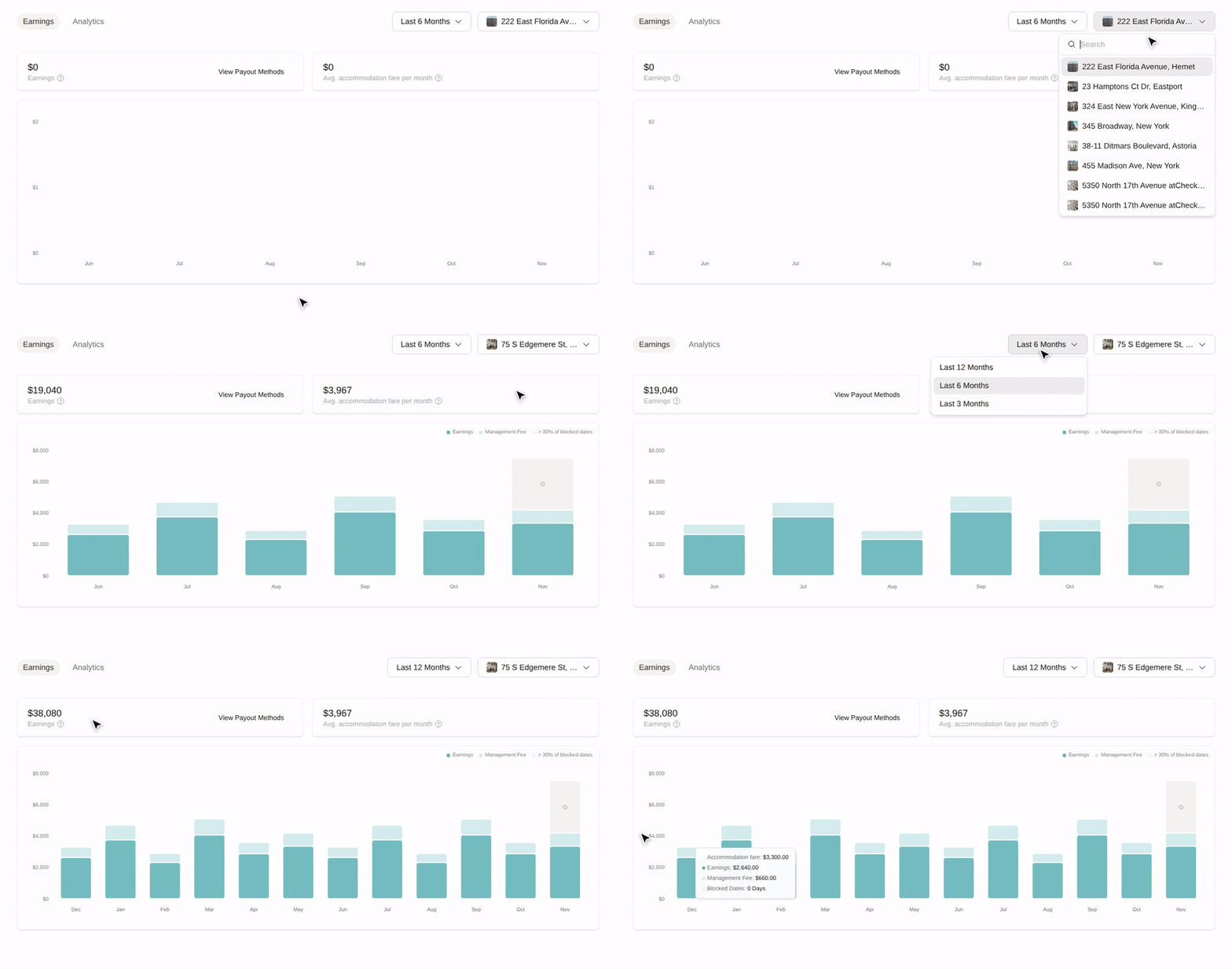
You can also start from Properties: open a property's menu and select View revenue.
Read the Earnings tab
- Earnings: what you earned for nights in the period, from reservations on every site. It's your nightly rates plus fees paid to you, such as cleaning and pet fees. Fees taken from your payout, such as a booking site's host fee, payment processing or a management fee, are subtracted.
- Avg. accommodation fare per month: your nightly rates for the period, without cleaning fees, taxes or fees from booking sites, divided by the number of months.
The chart shows your earnings for each month, with any Management Fee on top. Hover over a month's bar to see its Accommodation fare, Earnings, Management Fee and Blocked Dates; on a phone, select it.
Blocked dates are the days that were blocked rather than booked. They include your own blocks, synced calendars and days closed by booking rules such as Advance Notice.
When more than 30% of a month's days were blocked, a gray bar marked > 30% of blocked dates sits on top. It shows roughly what those days could have earned at that month's average nightly price.
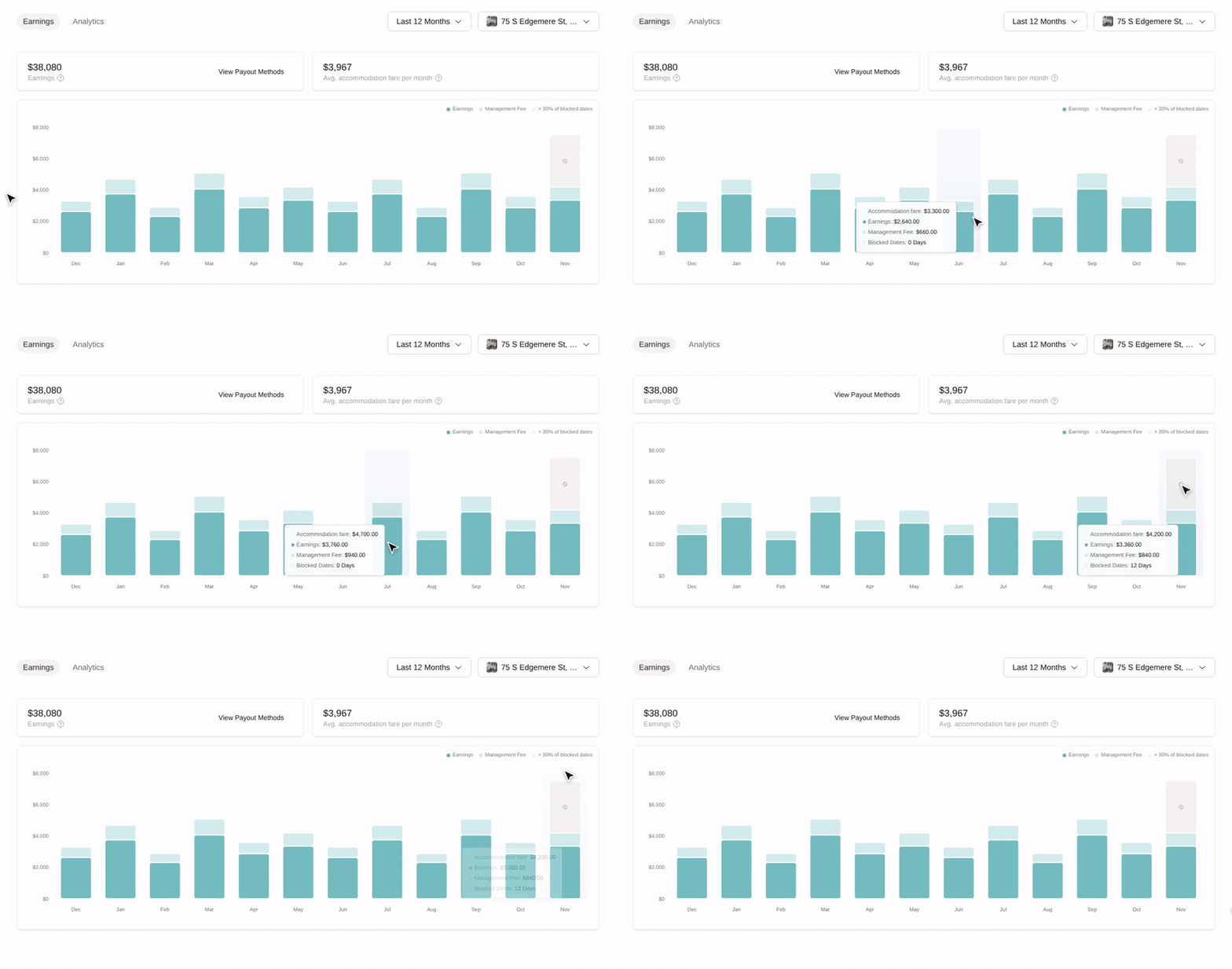
Earnings follow the nights of each stay. A stay that runs across 2 months is split between them, and the current month includes nights later this month that haven't happened yet.
The payouts listed below the chart are covered in the Getting paid guide. If we manage your property on Rove+ or Rove Lite, you'll see the same numbers without the payouts.
Read the Analytics tab
Analytics counts visits to your listing page on RoveTravel.com, including visits from links you share. Airbnb, Vrbo and other sites aren't included. Select 7d, 30d or 90d at the top.
- Listing views: how many times your listing page was opened.
- Unique visitors: how many people viewed it, counting each person once a day. Daily unique visitors shows each day.
- Search clicks: how often guests selected your listing in RoveTravel.com search, split into List (the results list) and Map (your map marker).
- Conversion: the share of people who viewed your listing and then finished checkout. Viewed, Checkout and Booked show how many people reached each step.
If your listing had fewer than 10 unique visitors in the last 30 days, 7d and 90d show Couldn't load analytics. 30d still shows what there is, or No activity yet.
If you have a question about a number on Performance, email support@andora.ai. Include the property and the month or dates you're asking about.