
Other booking sites
On this page
Andora keeps your listing up to date on the other sites guests book on, such as Airbnb, Vrbo and Homes & Villas by Marriott Bonvoy. This guide covers how each site connects, asking us to list you on Vrbo or Homes & Villas, getting paid and looking after guests from those sites. If we manage your property on Rove+ or Rove Lite, email support@andora.ai with the property and the site you'd like to be listed on.
Part 1: Choose how each site connects
Each site you're on connects to Andora in 1 of 2 ways.
Connected sites: Airbnb, if you connected it during setup. Also the sites we list your property on through our account, such as Vrbo and Homes & Villas by Marriott Bonvoy.
- Andora sends them your prices, usually within a few minutes, along with your blocked dates and most listing details.
- Their reservations and guest messages come into Andora, under Reservations and Messages.
- Make changes in Andora rather than on the other site. Changes made on the site can be replaced the next time Andora sends yours (see the Editing your listing guide for which details reach each site).
Calendar links (iCal): any other site or calendar, such as Booking.com, your own booking site or a personal Google Calendar.
- You add the site's calendar link in Calendar Sync, and Andora blocks its busy dates for you (see Part 6).
- Only busy dates are shared: no prices, reservation details or guest messages. Set your prices and answer guests on that site.
- A calendar link isn't instant. Andora reads it every 15 minutes, and the other site reads your Andora calendar on its own schedule. Check both calendars before you accept a reservation for the next few days.
If a site can be connected, connect it; you won't need its calendar link too.
What happened to the calendar links I had on Airbnb?
When you connected Airbnb, Airbnb stopped reading any calendar links you'd added there, such as one from Vrbo or your own site. Add those calendars in Calendar Sync instead (see Part 6), or the dates booked there won't be blocked on Airbnb.
Part 2: Ask us to list your property
We can list your property on Vrbo and Homes & Villas by Marriott Bonvoy. We list it through our account, so you don't need an account with the site.
- Open Properties and select Manage Listing for the property.
- Select Booking Platforms on the Listing Details tab.
- Select Request to list next to Vrbo or Homes & Villas by Marriott Bonvoy.
- Answer Do you already have a live listing on Vrbo? (it names the site you selected):
- Yes, connect my existing listing: paste the link to your listing, if you have it.
- No, create a new listing for me: we create and manage the listing for you.
- Add a note to our team if you like, then select Send request. You'll see Request sent.
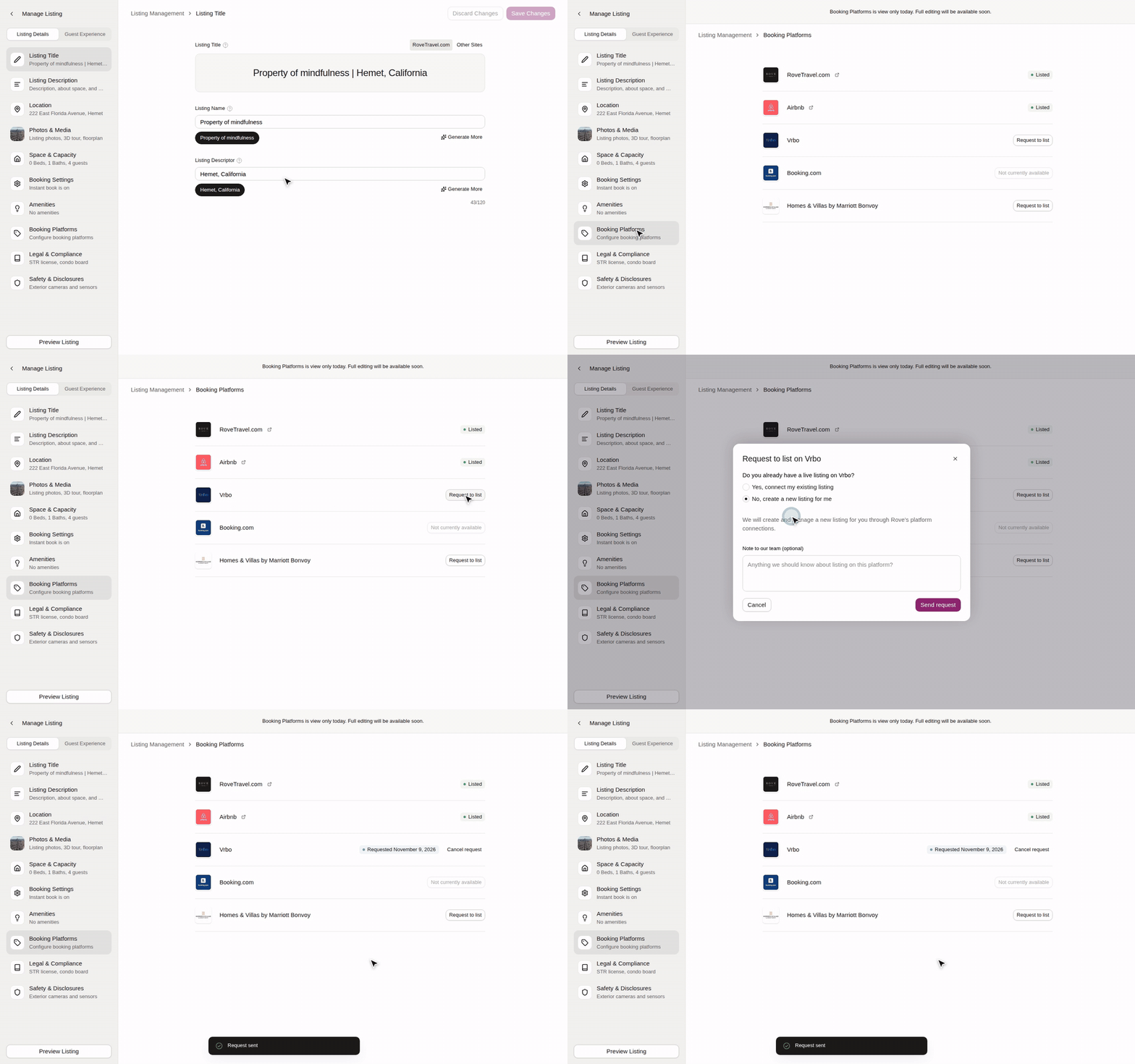
Booking Platforms says it's view only, but you can still send requests from it. Booking.com shows Not currently available. If you have your own Booking.com listing, add its calendar link (see Part 6).
Before you request a site, set up payouts. We collect the guest's payment on these sites and pay you through Payouts (see Part 4).
Part 3: Know what happens after you ask
Our team sets up each listing by hand. Until it's live:
- The site shows Requested with the date you asked.
- You can select Cancel request to change your mind.
When the listing goes live, the site shows Listed and we email you that your property is now live on that site. From then on, Andora keeps its prices, dates and listing details in step, as it does for Airbnb.
Your listing on these sites uses your Other Sites title, which can be up to 50 characters (see the Editing your listing guide).
Part 4: Get paid
For a reservation on a site we list through our account, we collect the guest's payment and pay you your share through Payouts, after the site's fees. Payouts start after check-in (see the Getting paid guide).
Each site keeps its own fees, and we don't add a fee for listing your property there. For example, Homes & Villas by Marriott Bonvoy keeps 15% of the nightly price and fees, plus a 3% payment fee on the total, including taxes.
To check what you'll earn from a reservation:
- Open Reservations and select View Details on the reservation.
- Select View Breakdown in the Earnings card.
If the breakdown has a Payouts section, we're paying you. If it doesn't, that site pays you directly, as Airbnb does for a listing on your own Airbnb account.
Performance adds up your earnings from every site, including those that pay you directly (see the Getting more reservations guide).
Part 5: Look after guests from other sites
Guests who book on Airbnb, Vrbo or another connected site appear in Andora like RoveTravel.com guests, with a few differences:
- Requests to book: they appear in Messages and under Reservations → Pending, and you approve or decline them the same way. The site sets the deadline, so check it there. Andora doesn't count down, remind you or block dates for these requests (see the Requests to book guide).
- Messages: these guests only get the text of your messages. Photos stay in Andora, so send photos from that site's app. Your automations reach them too, as text (see the Messages, AI and automations guide).
- Check-in details: we email the entry and wifi details you've added the day before check-in, if we have the guest's email address.
- Date changes and cancellations: they follow that site's rules. Guests change their dates on that site, and you can email us if you need to cancel (see the Reservations and reviews guide).
- Reviews: Received shows reviews from Airbnb, Vrbo and Booking.com, but replies aren't sent to those sites. Reply to reviews and review guests on that site.
- Damage: our damage protection only covers eligible RoveTravel.com reservations. Make a claim for a reservation from another site on that site (see the FAQ).
- Problems during a stay: report them to that site too. Rove Concierge isn't offered in conversations from other sites, so email us instead (see the Problems during a stay guide).
Part 6: Add a calendar link or stop listing on a site
Add a calendar link
- Copy the calendar's export link from the other site. It usually ends in .ics.
- Open Calendar and select the property.
- Select Calendar Sync under Availability Settings, then Add. On a phone or small screen, select Settings first.
- Enter a name for the calendar and paste the link.
- Select Two-way Sync to also get a link to paste into the other site, so it can see your Andora dates. Select One-way Sync to only bring its dates into Andora.
- Select Save. You'll see Calendar added.
For each site's export link and what to do when a calendar shows Sync failed, see the Calendar and availability guide.
Stop listing on a site
Email support@andora.ai with the property and the site. If we list your property there through our account, ask what happens to that listing and its upcoming reservations. Confirmed reservations stay booked, and they're yours to host.
To stop syncing a calendar link, select Turn Off or Delete for it in Calendar Sync.